The following instructions are for a Manager completing an annual evaluation for a non-teaching direct report.
Login to myPerformance
- Login to myPerformance

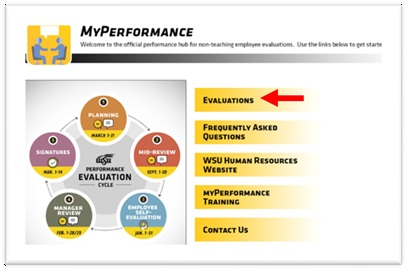
Select the Review
- Select the Evaluations link.
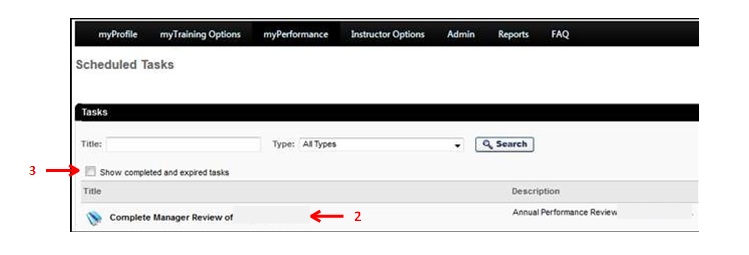
2. To access an employee’s evaluation before first submission in a step, select the evaluation in the Tasks list.
3. To access an employee’s evaluation if you have already submitted information into it previously, check the box for “Show completed and expired tasks”, then select the employee evaluation in the Tasks list.
STEP ONE – PLANNING AND MID-REVIEW
The first step of the review process is Planning and Mid-Review. During Planning, the manager inputs expectations for competencies and goals at the beginning of the new review period and meets with the employee to communicate expectations. To complete a Mid-Review, the manager inputs comments about the employee’s progress for competencies and goals and meets with the employee to communicate mid-review status. The manager can add comments and notes to competencies and goals throughout the time assigned to Step 1.
The Overview page shows the employee’s name, position, date of evaluation, and an overview of the process for the type of review being completed.
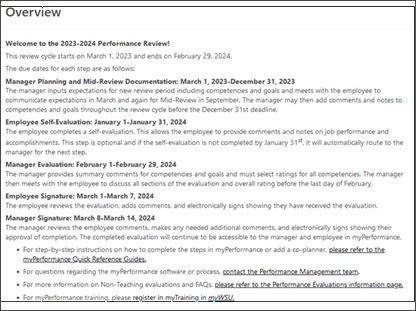
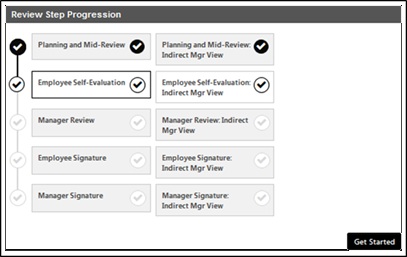
Review Step Progression
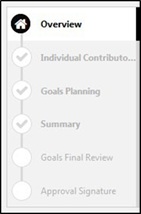
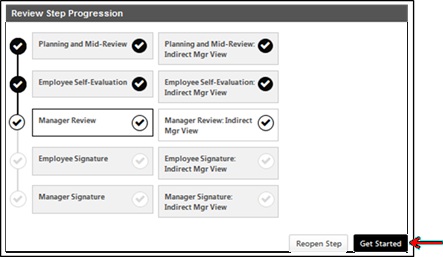
The Overview screen also shows a review of the Step Progression and highlights the current step. A side bar shows your progression through the current step. Click the Get Started button.
Competencies
All employees are evaluated on competencies aligned with the University’s Strategic Plan and the employee’s position knowledge. There are six core competencies. Managers and Budget Officers/Budget Review Officers have additional competencies.
When completing this section, the manager should provide specific examples of work expected that demonstrate how the competency would be rated. Job duties from the employee’s position description should be tied to the competencies. These examples should be added in the Comment box that appear under each competency.
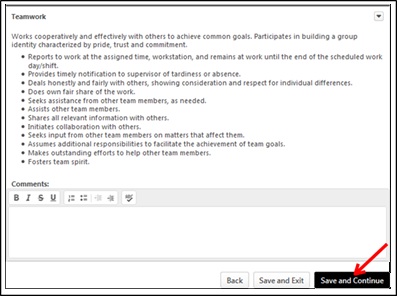
Managers can make multiple entries in the Comments box during the time assigned to Step 1. This will include comments documenting mid-evaluation progress and discussion with the employee. Managers may include additional comments such as foreseen barriers, changes, or amendments.
Each competency will have the definition with examples. Add comments in the open text box. When finished with all Competencies, click Save and Continue at the bottom of the Competencies page.
Goals Planning and Review
This section is optional and will not be weighed or rated during the end of the review period.
You may have additional goals that need added to the employee’s evaluation for development and/or documentation. Some examples include:
- For specifics in helping an employee in their position knowledge
- To help an employee develop to the next level
- To let the employee choose their own goals for self-development
- For work on a specific project
Managers can input goals during planning or at various times throughout Step 1. To add goals, follow the steps below. If you have no goals to enter, click Save and Continue to skip this section.
- Type the title of your first goal into the text box labeled Goal 1: Title.
- Type a description of the goal into the text box labeled Goal 1: Description.
- Select the due date for the goal in the box labeled Goal 1: Due Date.
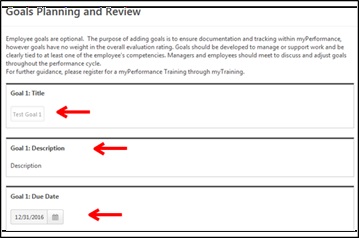
4. If you have additional goals, continue typing them into the Goal 2, Goal 3, Goal 4, or Goal 5 boxes.
5. If you have more than 5 additional goals on an evaluation, please contact Human Resources for assistance with modifying the employee’s Position Description to accommodate this situation.
6. Click Save and Continue.
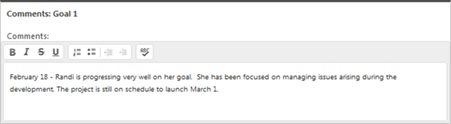
To add additional comments to goals during Step 1 and Step 3, please enter comments in the Comments box for the goal on the lower half of the Comments page.
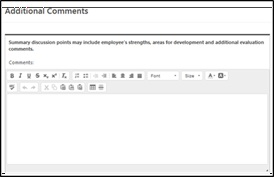
Additional Comments
To add general comments during Step 1 and Step 3, please enter comments in the Additional Comments box. These are summary discussion points for the overall evaluation.
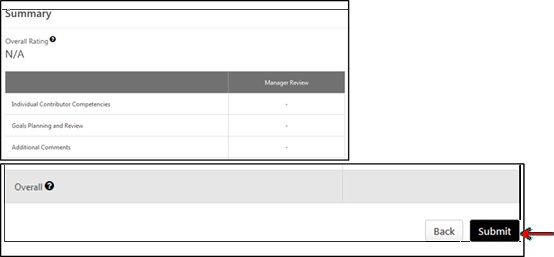
Summary
Summary section will have no content until Step 3. YOU MUST CLICK THE Submit BUTTON..
**Managers should follow these same instructions above to access the employee’s evaluation anytime during Step 1 of the evaluation period to add additional comments, edit existing comments, and ensure employee progress on competencies and goals is well documented. On the due date for Step 1, the review will advance to the employee to complete Step 2- Employee Self-Evaluation. This is an optional step for the employee to complete. The evaluation will return to the manager to complete Step 3 – Manager Review.
Options
Managers will have various options available in the Options menu during Steps 1, 3, 5.

Options may include:
Add Co-Planner
- Manager can add a co-planner who may have supervised the employee during work on a project or temporary work in another department.
Attachments
- Manager can add up to three attachments such as a position description.
Print Review
- Manager can print a copy showing all comments currently entered into the review.
STEP THREE – MANAGER REVIEW
During the Manager Review, the manager will rate the employee on Competencies. The manager should review the information submitted by the employee on their Self-Evaluation. (An employee does not have to complete the Self-Evaluation, however if the manager would like to re-open the Self-Evaluation Step for their employee, then that option is presented on the Review Step Progression screen below). The manager should also schedule a review meeting to discuss in-person the comments the manager has added, as well as the ratings that were assigned to the Competencies.
Login through myWSU and access the review (see page 1 for instructions).
Review Step Progression
This screen summarizes the review steps for the review period. Choose the Get Started button.
Rate Competencies
Managers must rate each competency according to the employee’s performance throughout the review period.
- Review comments added by the employee during Step 2 – Self-Evaluation.
- Click the drop-down menu to select the rating for the first Click the to read the definition of each rating.
- Add comments to each competency explaining the rating, either positive or negative.
- Scroll down to the next competency to continue rating.
- When you are finished with each competency, click Save and Continue to advance to the next section.
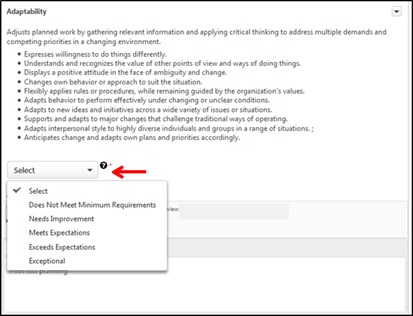
Goals Planning and Review
This section is optional and will not be weighed or rated during the end of the review period. If you added goals during the Planning or Mid- Review and wish to comment on any goals at this time, a comment box is available in the lower half of the page. Click Save and Continue to advance to the next section.
Additional Comments
In the Additional Comments section, the manager will be able to enter summary comments for the overall review period.
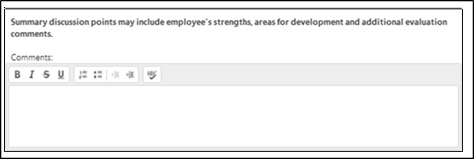
Rating Summary
In the Summary section, the manager will be able to view overall rating calculations after the completion of their ratings. It is also used to print the review or upload attachments at the end of the review period. Click the Options button to print the evaluation, if desired. Otherwise, you may click Next.
Overall ratings take weights into consideration, and are automatically calculated by the software:
- The Competencies are weighted equally.
- The Competencies account for 100% of the Overall Rating
Submit Review
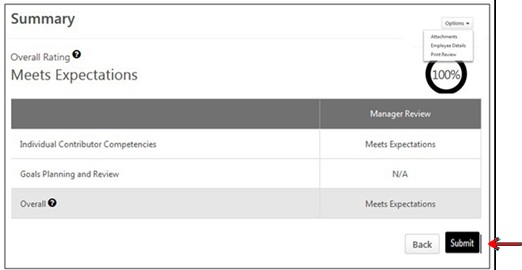
*The review will now advance to Step 4 - Employee Signature for their signature and any additional comments. Once the employee electronically signs and submits the review, the evaluation will return to the manager to complete Step 5 – Manager Signature.
STEP FIVE – MANAGER SIGNATURE
During the Step 5, the manager will be able to view comments from the employee and/or indirect manager after the ratings were assigned. The manager can add additional comments and electronically sign the evaluation.
Login through myWSU and access the review (see page 1 for instructions).
Review Step Progression
This screen summarizes the review steps for the review period. Click the Get Started button.
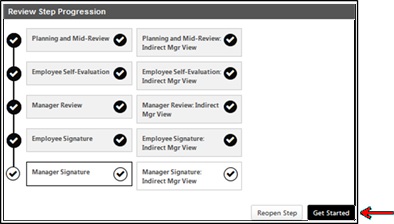
Competencies
This section allows the manager to view previous entries and comments for competencies. These sections are view-only.
Click Next.
Goals Planning and Review
This section allows the manager to view previous entries and comments for goals. These sections are view-only.
Click Next.
Employee Comments Review
This section allows the manager to view any comments entered by the employee during Step 4. This section are view-only.
Click Next.
Summary
In the Summary section, the manager will be able to, once again, view the overall rating calculation.
Click Next.
Sign the Review
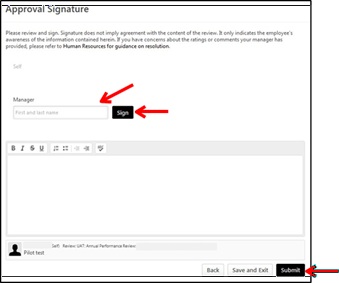
The manger will review any employee comments and add comments if desired. The manager can add additional comments. The manager will electronically sign the evaluation by typing their name into the text box, click the Sign button.
Once completed with comments and signature, click Submit.
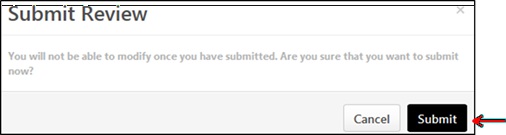
Submit Review
A box will appear asking if you are sure you want to continue.
Click the Submit button.