


CITI Program Instruction Guide
WSU Research Compliance Office
Table of Contents
Logging into the CITI Program
CITI Program Website
New User Registration
Step 1 – Select Your Organization Affiliation
Step 2 – Personal Information
Step 3 – Create your Username and Password
Step 4 – Learner Registration, Country of Residence
Step 5 – Learner Registration (continued)
Step 6 – Provide Information Requested by Wichita State University
Step 7 – Questions 6 and 7
How to Select Training Modules
Add a Course
How to Remove a Course
View Previously Completed Coursework
CITI Export Controls Course
Complete the Integrity Assurance Statement
CITI Export Controls Course – Stage 1
Training Modules: CITI Export Compliance
Training Modules: CITI Conflict of Interest, Financial Conflict of Interest
My Profiles - Department Code
How to Share Training Completion Reports
From the CITI Program
Forward CITI Program Completion email
Questions?
Log in to the CITI Program (Web address: https://citiprogram.org/)

If you are a returning user, enter your credentials and click Log In
If you are a new user, select REGISTER to create your account
Detailed instructions are located in the next section of this Guide, New User Registration
Step 1 – Select Your Organization Affiliation
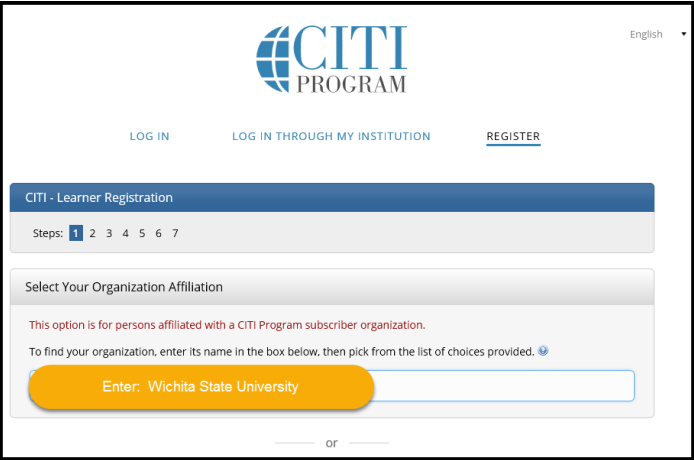
In the Select your Organization Affiliation box, enter Wichita State University
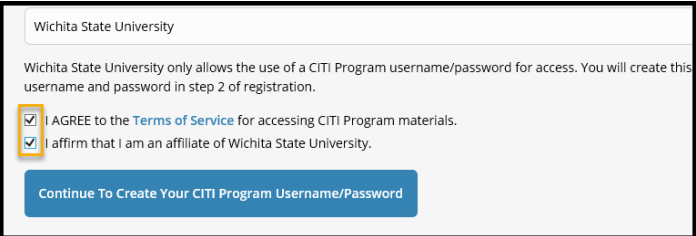
a.Checkboxes:
*Check I Agree after reading the “Terms of Service”
*Check I affirm that I am an affiliate of Wichita State University”
b. Click Continue to Create Your CITI Program Username/Password
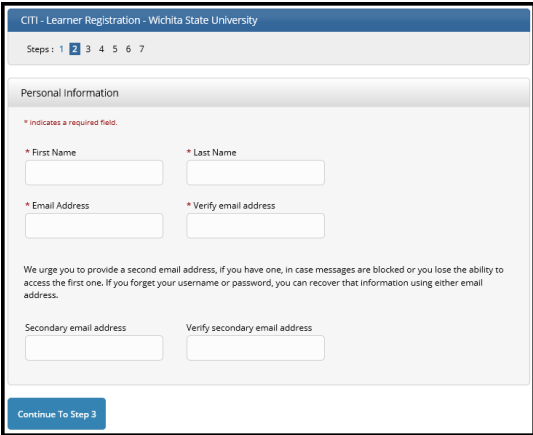
a. Enter your First and Last Name
b. Enter your primary email address, re-enter to verify
c. Enter your secondary email address. re-enter to verify
d. Continue to Step 3
Step 3 – Create your Username and Password
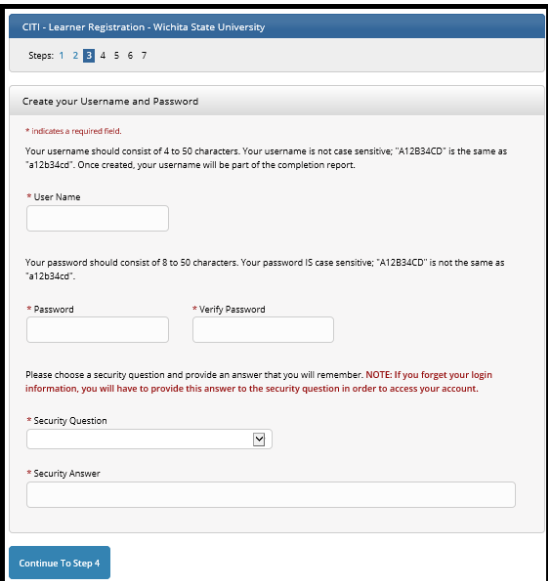
Prior to creating your User Name and Password, take a moment and read the helpful
hints on the page.
a. Enter your new User Name
b. Enter your new Password, re-enter to verify
c. Select and answer your Security Question
d. Continue to Step 4
Step 4 – Learner Registration, Country of Residence
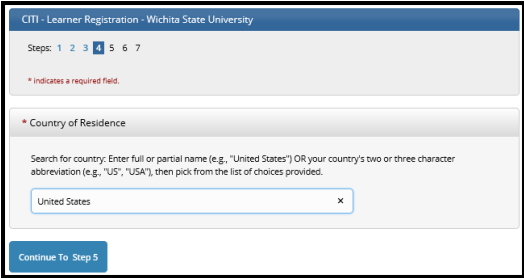
a. Enter your Country of Residence (full or partial) and pick from the drop down list
b. Continue to Step 5
Step 5 – Learner Registration (continued)
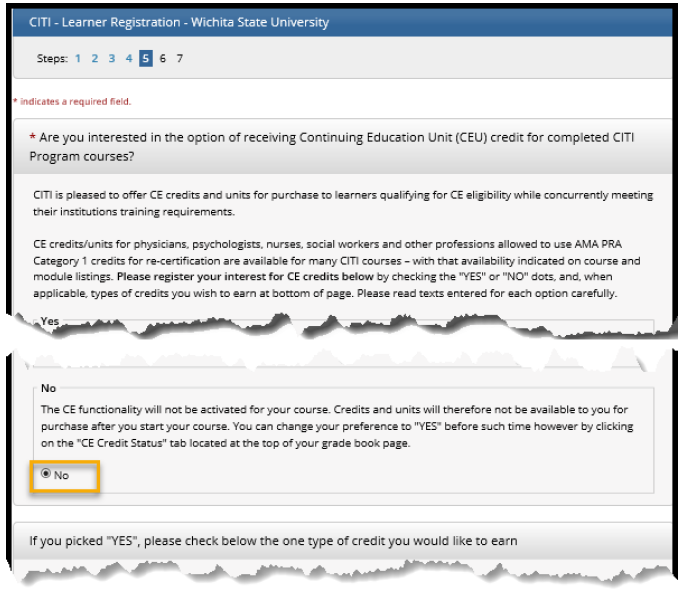
a. Choose “No” for CE Credits
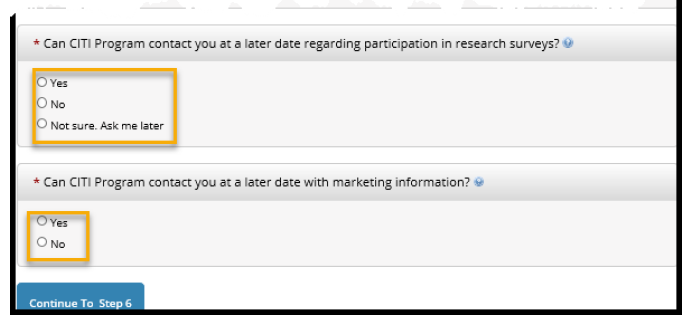
b. Select one of the 3 options for participation in research surveys and marking information
(your personal choice)
c. Continue to Step 6
Step 6 – Provide Information Requested by Wichita State University
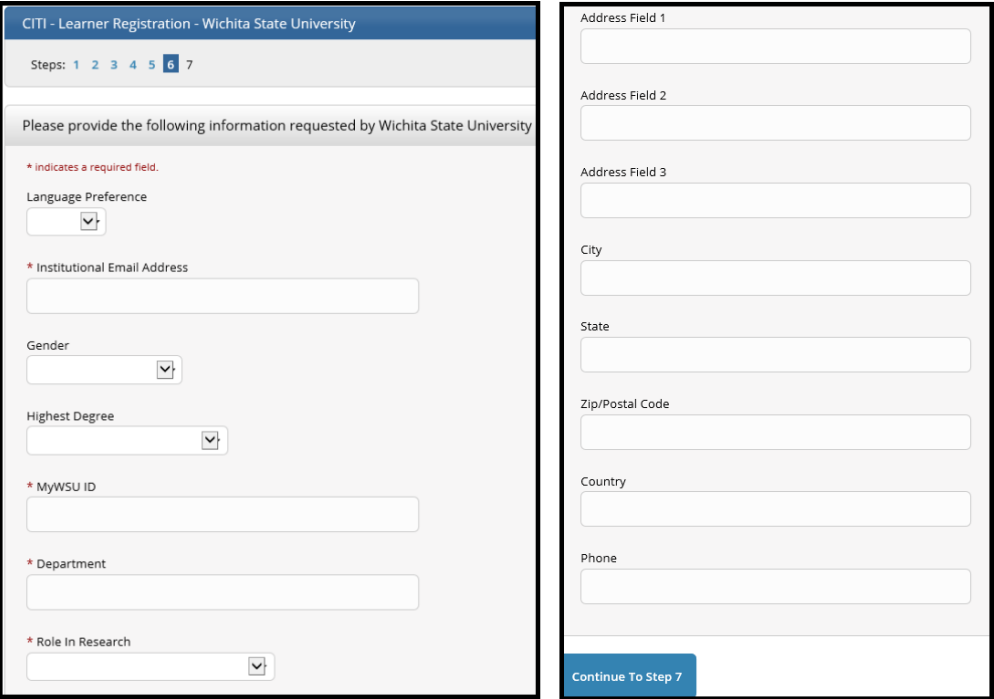
- Language Preference (Optional)
- Institutional email Address-An email is automatically sent to this email address from noreply@citiprogram.org containing your new account number and an FAQ
- Gender (Optional)
- Highest Degree (Optional)
- myWSU ID – Enter your myWSU ID (example: A123Z987
- Department – Enter your 6-digit Home Organization Code
- Look up your code in myWSU from the Faculty/Staff tab
- Select myTraining or myPerformance and go to myProfile (top left of black menu bar)
- Under Additional Information, the code is in parentheses after the Organization description
- The code is located on myWSU, Faculty/Staff tab. Select myTraining or myPerformance and go to myProfile. Under Additional Information, the code is in parentheses after the Organization description.
- Role in Research – Select the role that most closely describes what you do. Selection
examples:
- Student employees: Student Researcher
- Full time lab employees: Lab Research Staff or Research Assistant
- Administrative positions such as Administrative Assistants, Contracts, Payroll, IT: Optional Department Staff.
- Address, City, State, Zip, Country, Phone (Optional)
Continue to Step 7
Scroll down to Questions 6 and 7
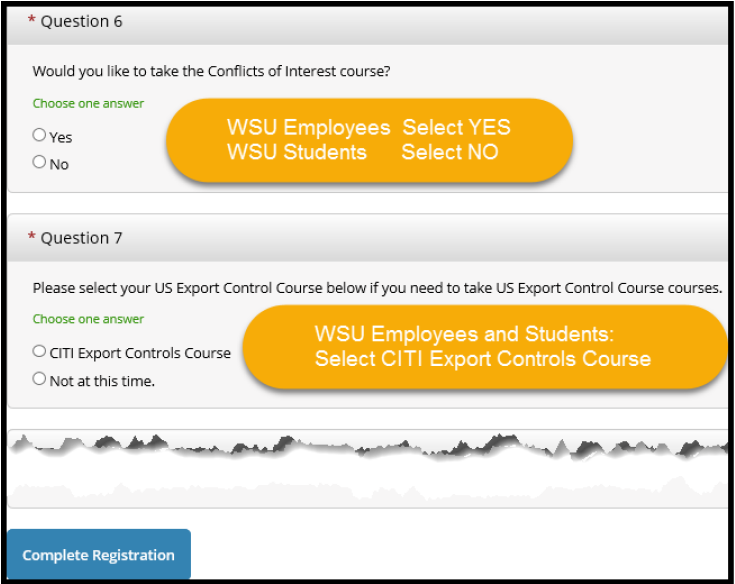
Question 6
If you are a full or part time faculty or staff member at WSU, select YES to take
Conflicts of Interest
If you are a student employee at WSU, select NO
Question 7
Select CITI Export Controls Course if you are a WSU employee or student
Click the Complete Registration button
Finalize Registration
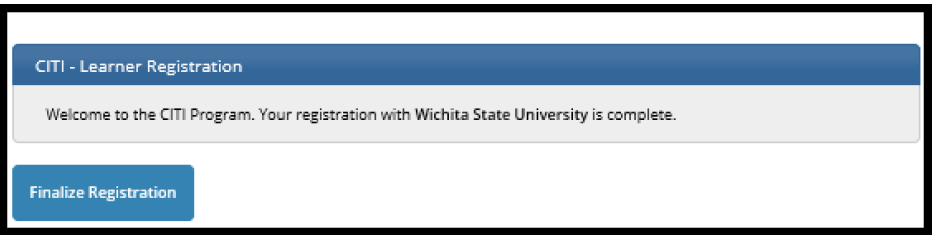
Click Finalize Registration
Congratulations, your registration is complete!
An automatic email is sent to the primary email address listed under My Profile from
noreply@citiprogram.org containing your new account number and an FAQ.
Log in to the CITI Program (Website address: https://citiprogram.org/) using the User Name and Password previously created.
Select Wichita State University Courses
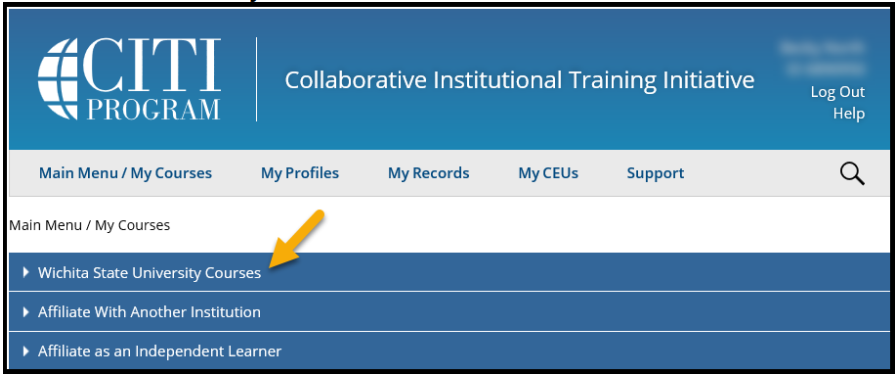
Take a moment and familiarize yourself with the following page, My Learner Tools the frequently used options discussed below
Depending upon your answers to Questions 6 & 7 during New User Registration, Step 7, CITI Export Controls Course and Conflicts of Interest may display
You may be required to take additional courses, depending upon your role. Common modules
include:
*CITI Export Controls Course
*Conflicts of Interest
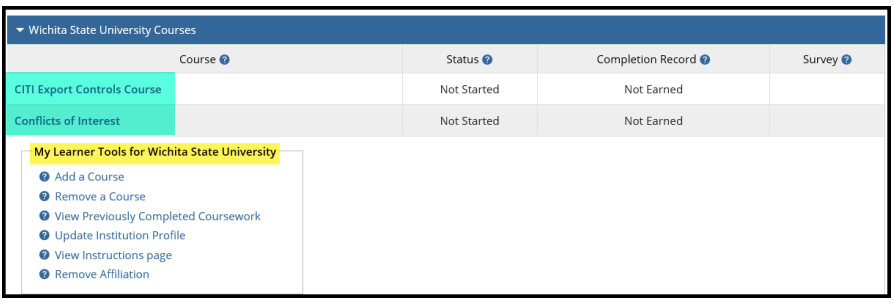
Select Add a Course under My Learner Tools for Wichita State University to return
to Questions 1-8 previously displayed in New User Registration – Step 7
Question 1 – Laboratory Animal Welfare is required for those involved in animal research.
Question 2 – Responsible Conduct of Research
Question 3 – Human Subjects Research
Question 4 – Good Clinical Practice
Question 5 – Health Information Privacy and Security (HIPS)
Question 6 – Conflicts of Interest (Response Required)
Question 7 – CITI Export Control Course (Response Required)
Question 8 – Essentials of Research Administration
Question 9 – Institutional/Signatory Official
After making your selection(s), click the Submit button
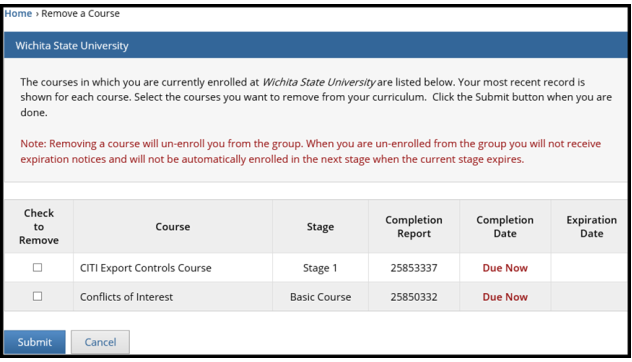
After clicking Remove a Course under My Learner Tools for Wichita State University, the following page will display
a. Take a moment to read the information under NOTE on your screen
b. Use the Check to Remove box to select the course(s) to be removed and Submit
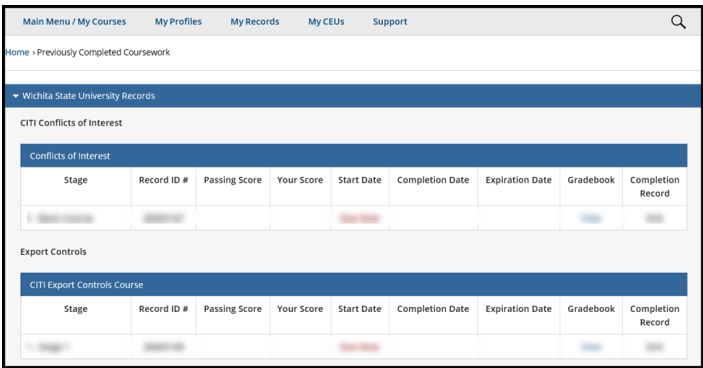
View Previously Completed Coursework
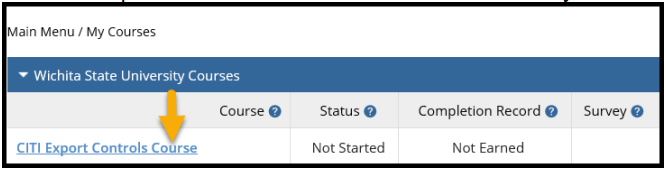
Select the CITI Export Controls Course from the Main Menu / My Courses page
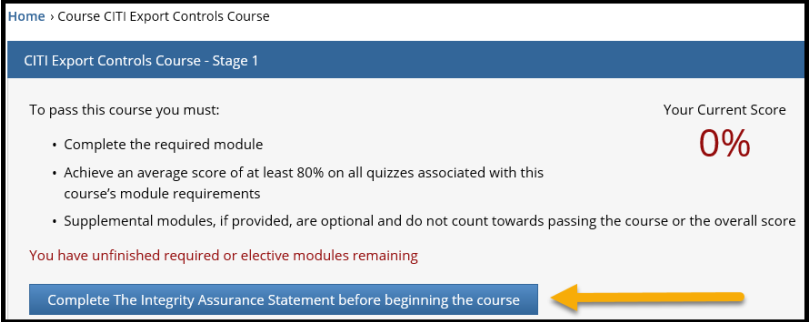
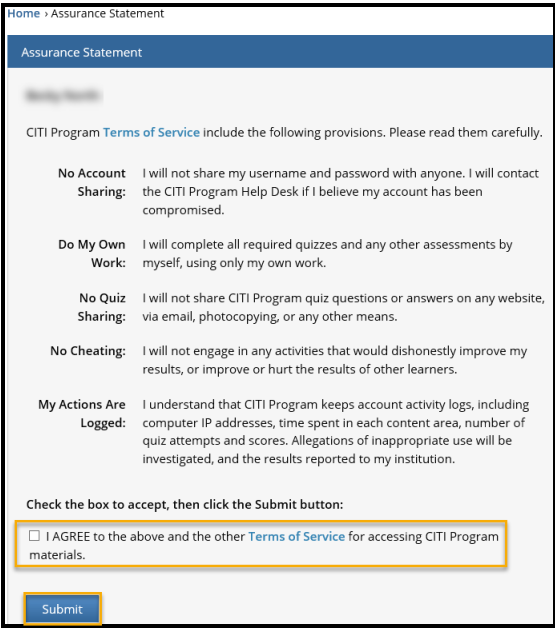
Complete the Integrity Assurance Statement
Click the option Complete the Integrity Assurance Statement BEFORE beginning the course
Assurance Statement
a. Read the Assurance Statement’s Terms of Service
b. Check the I Agree box
c. Click Submit to proceed
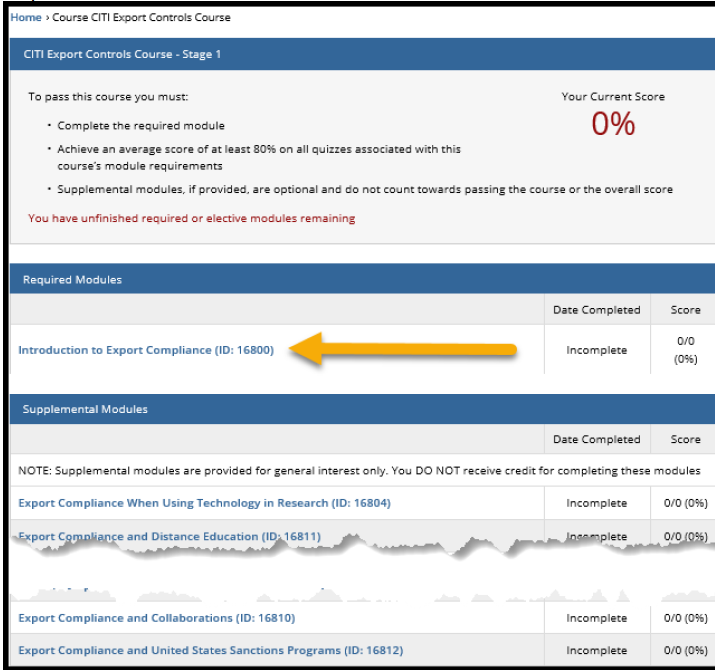
CITI Export Controls Course – Stage 1
Complete the required module Introduction to Export Compliance
Take the quiz at the end
To pass the course, an average score of at least 80% on all quizzes associated with
the course’s module is required
Training Modules within CITI Export Compliance
| Module ID | Title |
Estimated Minutes to Completed |
Required | Recommended |
|---|---|---|---|---|
|
1 16800 |
Introduction to Export Compliance |
45 | All WSU employees | |
|
2 16801 |
Export Compliance for Researchers: Part I |
35 |
Researchers with a Blanket Export Determination Letter or a Technology Control Plan (TCP) |
All researchers,
|
|
3 16802 |
Export Compliance for Researchers: Part II |
35 | Researchers with a Blanket Export Determination Letter or a Technology Control Plan (TCP) |
All researchers,
|
|
4 16803 |
Export Compliance for Research Administrators |
35 | Research Office NIAR Contracts General Counsel |
|
|
5 16805 |
Export Compliance and Biosafety |
25 |
All researchers General Counsel |
|
|
6 16806 |
Export Compliance for Operational Departments |
20 | *All Business Operations (employees & departments that exist to support the mission) |
Research Office NIAR Contracts General Counsel |
|
7 16807 |
Export Compliance for International Shipping |
20 | Any individual or department that regularly sends or receives items via international shipping |
All researchers Research Contracts |
|
8 16808 |
Export Compliance and Purchasing |
20 | Purchasing Financial Operations Budget Officers Vice Presidents |
Researchers Research Contracts NIAR Contracts General Counsel |
|
9 16809 |
Export Compliance and International & Foreign Waters |
15 | ||
|
10 16810 |
Export Compliance and Collaborations |
25 | Anyone with Visual Compliance access |
All researchers Research Contracts NIAR Contracts General Counsel |
|
11 16812 |
Export Compliance and U.S. Sanctions Programs | 20 | Anyone with Visual Compliance access |
All researchers Research Contracts NIAR Contracts General Counsel |
Training Modules: CITI Conflict of Interest, Financial Conflict of Interest
|
Module ID |
Title | Estimated Minutes to Complete | Required | Recommended |
|---|---|---|---|---|
|
1 15070 |
Financial Conflicts of Interest: Overview, Investigator Responsibilities and COI Rules |
60 |
All Researchers
|
All individuals participating in research regardless of funding source |
|
2 15702 |
Institutional Responsibilities as they Affect Investigators |
40 |
Any individual meeting the PHS definition of an Investigator | All individuals participating in research regardless of funding source |
|
3 15703 |
Conflicts of Commitment and Conscience |
30 |
All Researchers
|
All WSU Employees |
|
4 16765 |
Institutional Conflicts of Interest | 25 | All Budget Officers All Budget Review Officers |
All members of the General Counsel’s President’s Executive |
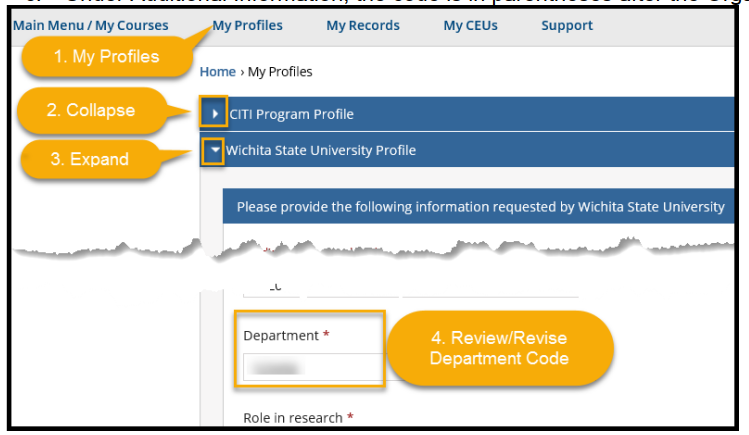
To review/revise your Department Code
1. Select My Profiles from the menu bar toward the top of the page
2. Collapse the CITI Program Profile OR scroll down to Wichita State University Profile
3. Expand the Wichita State University Profile and review/revise the 6-digit Department Code
a. Look up your code in myWSU from the Faculty/Staff tab
b. Select myTraining or myPerformance and go to myProfile (top left of black menu
bar)
c. Under Additional Information, the code is in parentheses after the Organization
description
There are different ways to notify your Supervisor/Department head of successful completion of the CITI Courses.
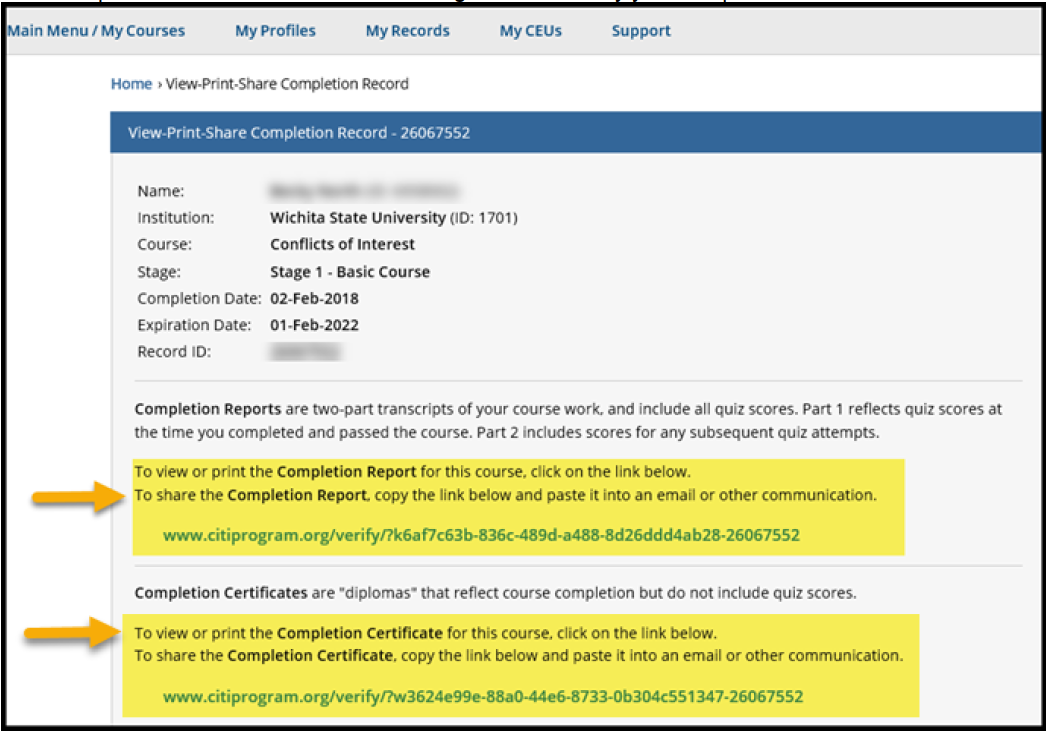
Under My Courses, locate the completed course whose transcript you want to share and
select the option View-Print-Share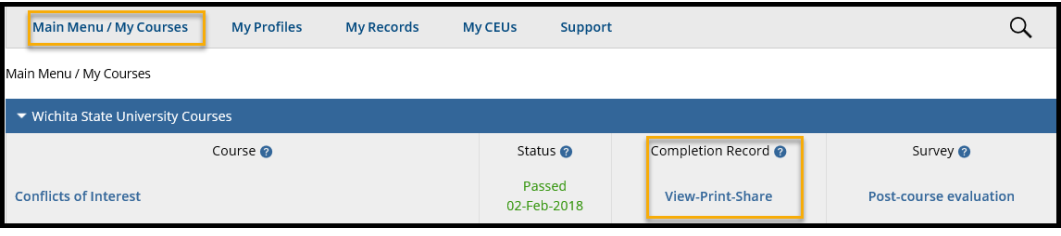
If instructed by your Supervisor/Department Head to send them a copy of your completion information:
- Copy and paste one of the links into a new email
- Link to the Completion Report showing all quiz scores
- Link to the Completion Certificate showing completion but not quiz scores
Email recipients will receive an email containing the link to verify your completion of the CITI course
Forward CITI Program Completion email
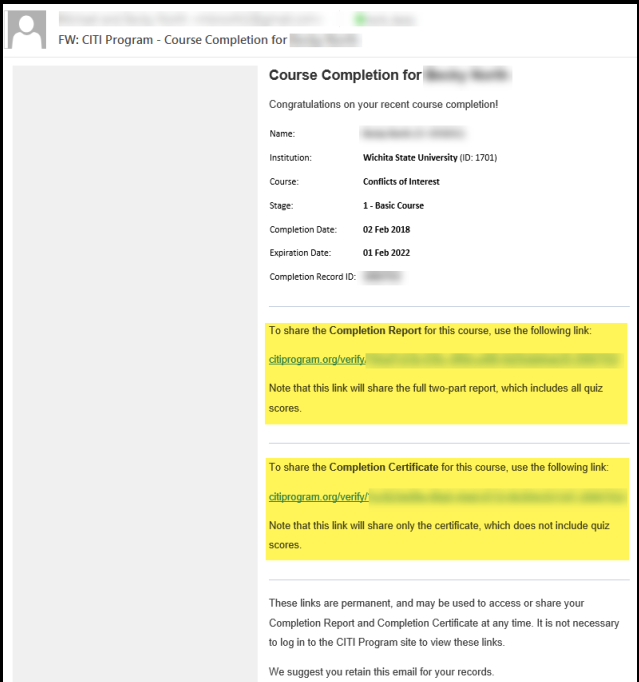
Upon completion of the CITI program, you will receive a Course Completion email from CITI Program. Check the email account you entered into My Profile when you registered for the CITI Program.
How to send a copy of your completion report or certification to your Supervisor/Department Head using the CITI Program email:
*Forward the CITI Program email
OR
*Copy and paste one of the links into a new email
- Link to the Completion Report showing all quiz scores
- Link to the Completion Certificate showing completion but not quiz scores
It is highly recommended that you retain the CITI Program email for your records.
Feel free to email the WSU Research Compliance Office at compliance@wichita.edu if you have questions