How to Edit or Approve Proposals in CAT, CIM or CLSS
This is for workflow approvers who need to review and approve proposals for courses, programs, schedules or miscellaneous admin requests in their queue.
Accessing the Dashboard
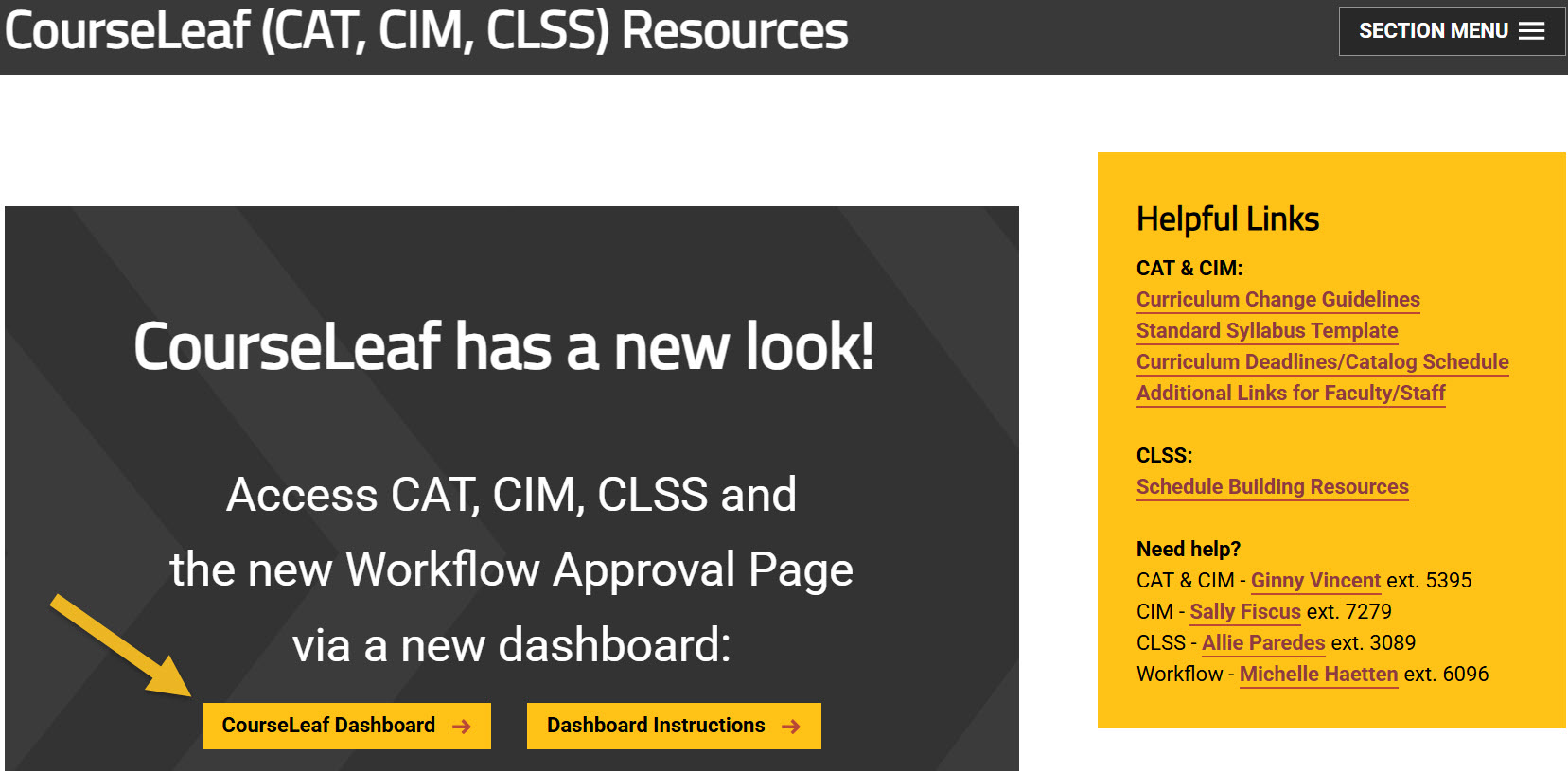
Using any web browser except Internet Explorer, go to the CourseLeaf (CAT, CIM, CLSS) Resources page (https://wichita.edu/courseleaf) and click the CourseLeaf Dashboard button link:
Your Approval Queue: The Workflow Tab
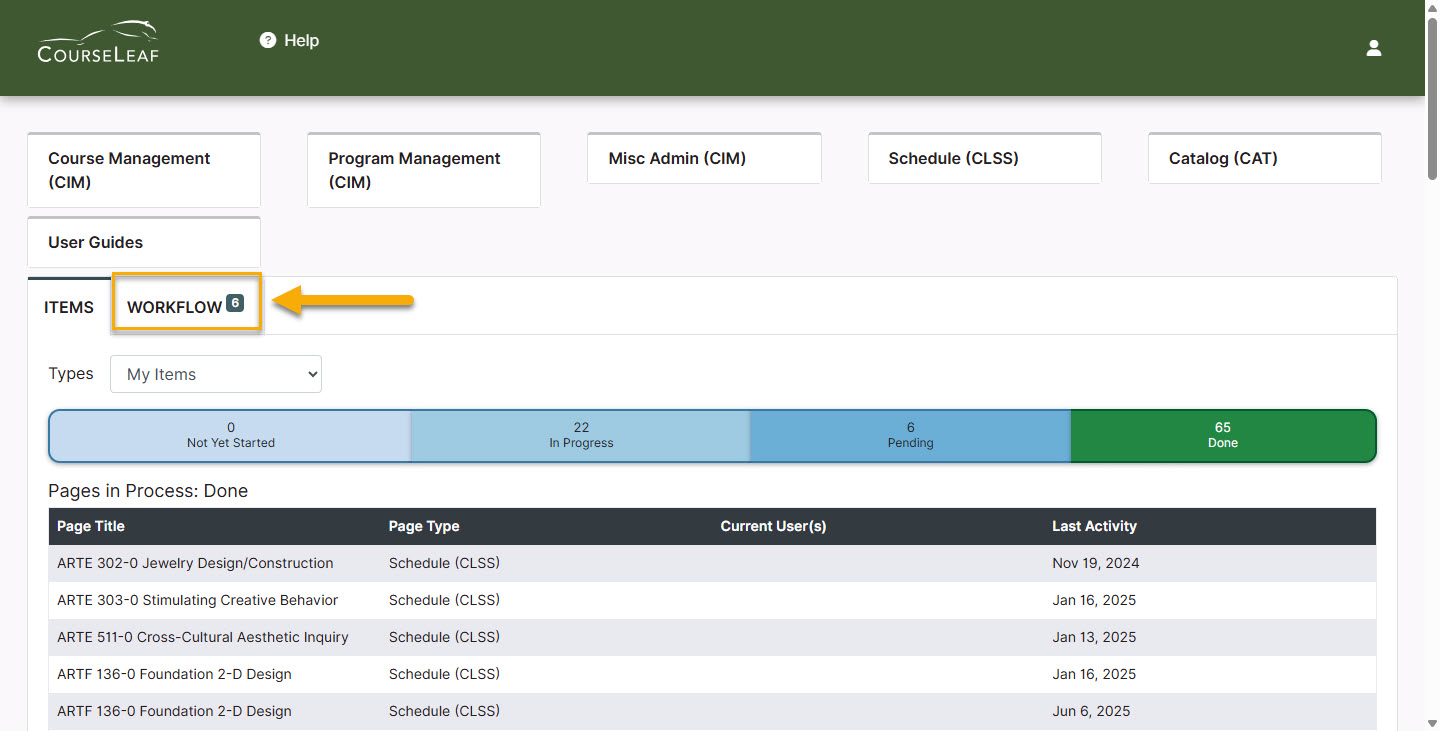
When the CourseLeaf Dashboard window opens, proposals in your queue will not be immediately visible. This is due to the page defaulting to the Items tab. You will need to click on the Workflow tab to view your queue.
The Workflow tab will automatically filter for your role. If you have multiple roles in the CourseLeaf system (CAT, CIM, CLSS), then all of your roles will be selected and any items in those queues will appear in the list (note the different role names in the Approver column).
Please Note: If there are no items for you to approve, then nothing will appear under the Workflow tab.
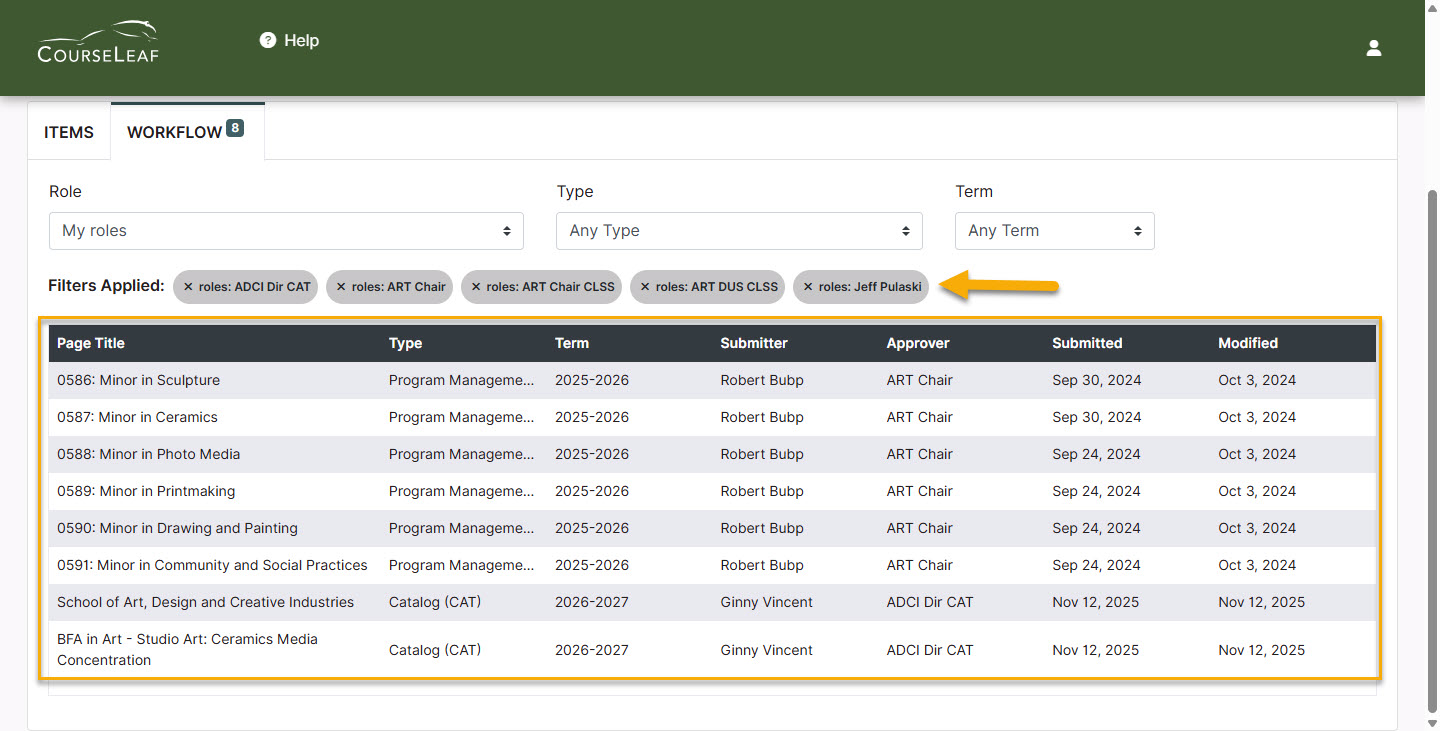
To filter only for a specific role, leave the role you want to view alone and click on the X by any of the role names in the grey bubbles to remove that role.

To add back any of the roles, search for it under the Role drop-down list, and click on the role you wish to view. Only roles with something in the queue will appear in the drop-down.
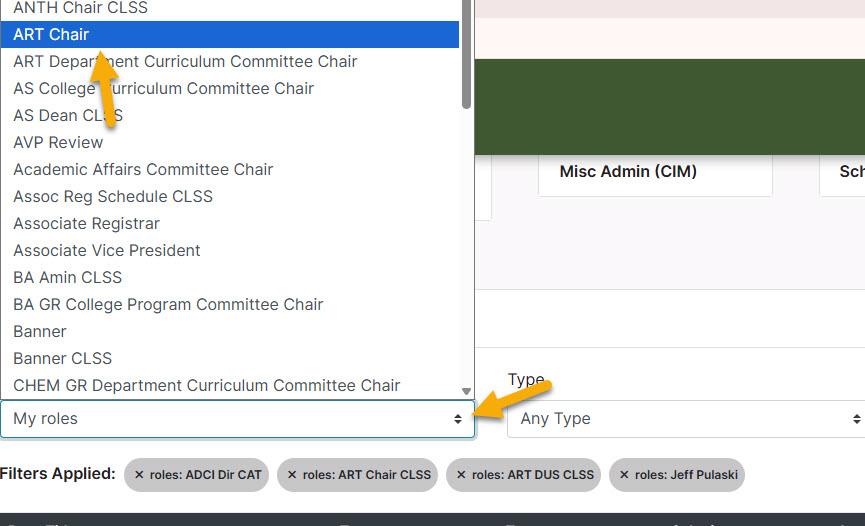
Proposals can also be filtered by type and term. Use the Type filter to view only programs, courses, catalog pages, or schedule items. Use the Term filter to view items with a specific effective term.
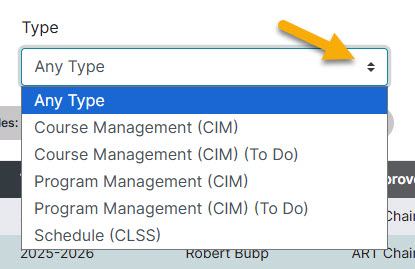
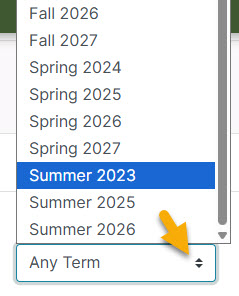
Please Note: Any filters selected are added to the filters already applied. You will need to click on the X of any filter you wish to remove. The system will not automatically remove any filters.
Reviewing Proposals
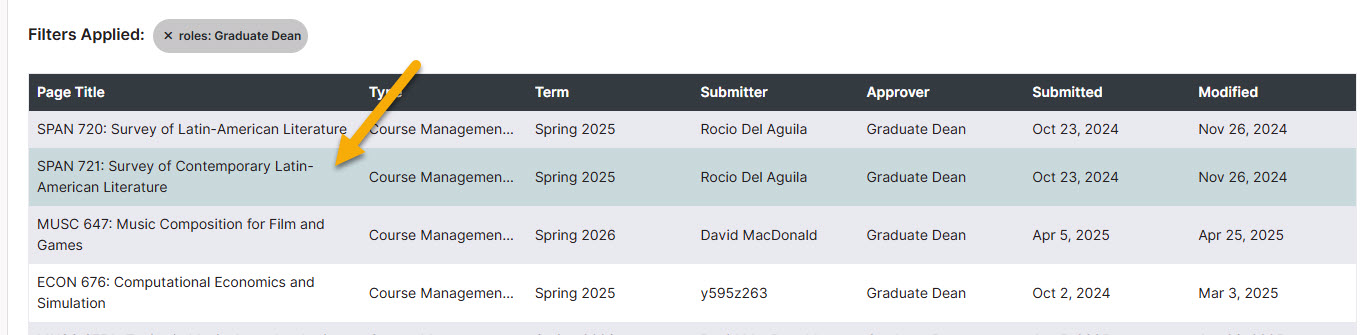
Click on any of the proposals to view it. A preview screen will pop up with the entire proposal:
Red text with a line through it indicates current information that someone is proposing to have removed or changed with this proposal. The green text indicates new information being proposed with this proposal.
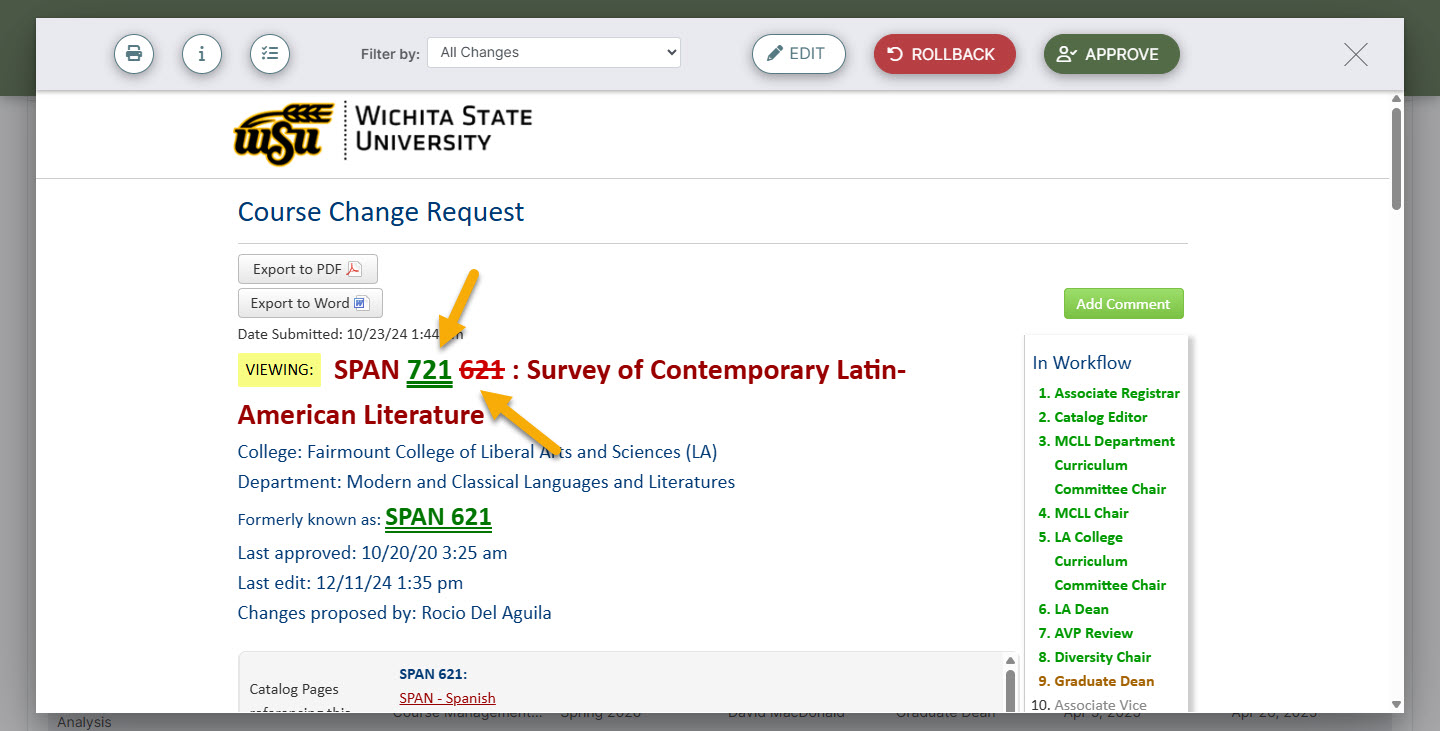
The Justification and Resources section describes in full the changes being requested:

At the very bottom of the proposal, be sure to read any Reviewer Comments left by previous approvers:

Editing Proposals
Before approving the proposal, click the Edit button in the top of the Preview Screen:

This will open the edit form of the proposal in a new window. Review the full proposal, make any necessary changes and, if necessary, fill in the Reviewer Comments field at the bottom of the form. Be sure to click the Save Changes button at the bottom when finished:

The edit window will close, and you will be back at the Preview Screen on the Dashboard.
Approving Proposals
If you are ready to approve this proposal, click the green Approve button in the top right of the proposal Preview Screen:

If you’d like to confirm that this proposal has left your queue and has moved on to the next approval step in workflow, you can refresh the Dashboard, re-select the Workflow tab, and confirm that this proposal is no longer showing in the Pages Pending Approval section.
Please Note: Refreshing the Dashboard will reset the filters under the Workflow tab.
Rolling Back Proposals
If you need to send the proposal back to the person that submitted it or anyone in a prior workflow approval step for edits before approving it, you can click the red Rollback button:

A new window will appear on the right side of the proposal Preview Screen allowing you to select whom you would like to roll the proposal back to. You can select any previous approver in the workflow or the initiator of the proposal. You are also required to provide a comment/reason for the rollback:
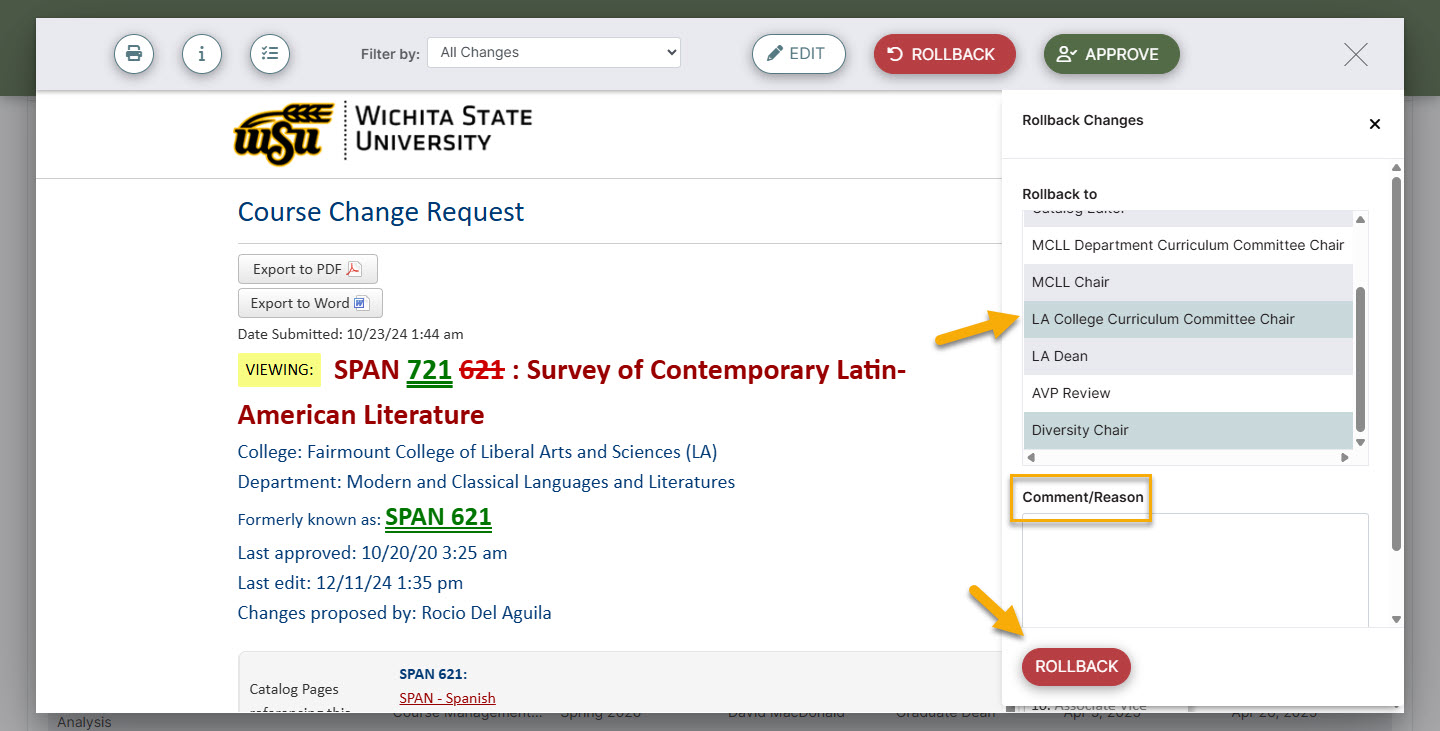
Please Note:
- The first person in the rollback list is the ‘initiator’ who submitted the proposal to workflow initially. Rolling a proposal back to this person will roll the proposal completely out of workflow and it will need to be resubmitted to workflow once any necessary edits are made.
- Whomever you choose to roll it back to will need to make the necessary edits and then all subsequent approvers in the list, who have already approved the proposal, will have to reapprove it with these new edits.
- The comment you enter will stay with this proposal in history forever in the Reviewer Comments section at the bottom of the proposal and will be viewable by everyone.
Additional Features in the Preview Screen
PRINT the Proposal:
Click on the printer icon:

HIDE the Current Information:
Click the drop-down next to the Filter by field. Select Hide Changes so the proposal only shows the proposed information. This eliminates the current information in red strikethrough from showing. The new proposed information will still show but it won’t be in green. To view the red/green markup once again, select All Changes from the same drop-down.

View Changes by a Specific Person:
Click the drop-down next to the Filter by field to select someone:

Export the Proposal:
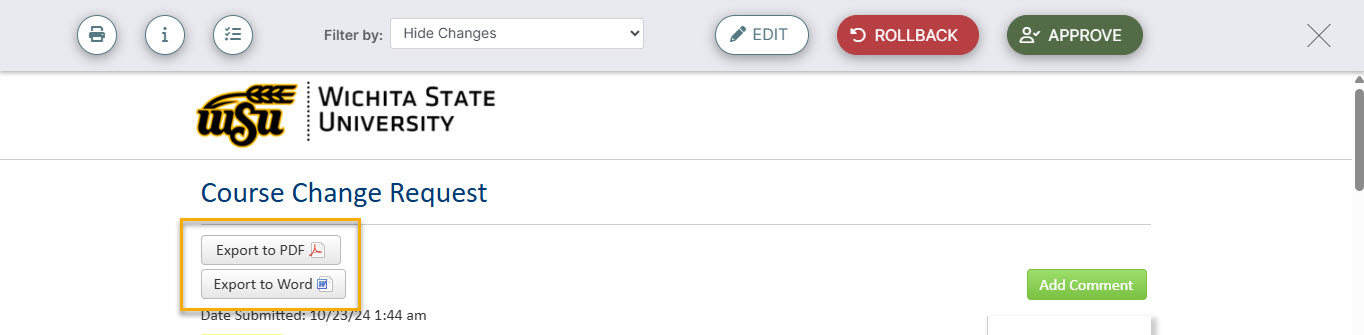
You can export the proposal in either PDF or Word format by clicking on the corresponding button. The PDF format is suggested.