

Editing a Course List Table
Accessing the Dashboard
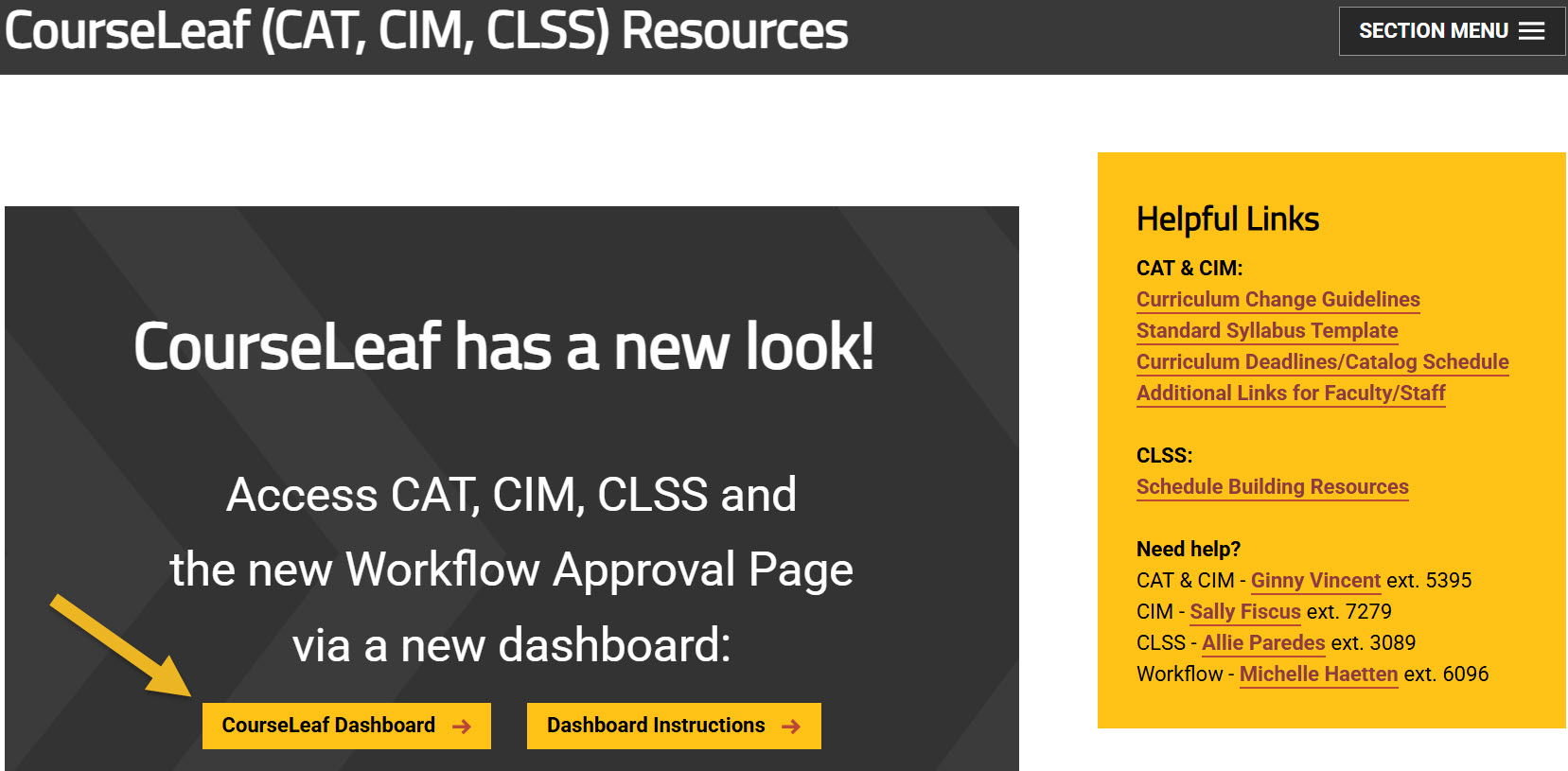
Using any web browser except Internet Explorer, go to the CourseLeaf (CAT, CIM, CLSS) Resources page (https://wichita.edu/courseleaf) and click the gold CourseLeaf Dashboard button link:
Accessing Program Management
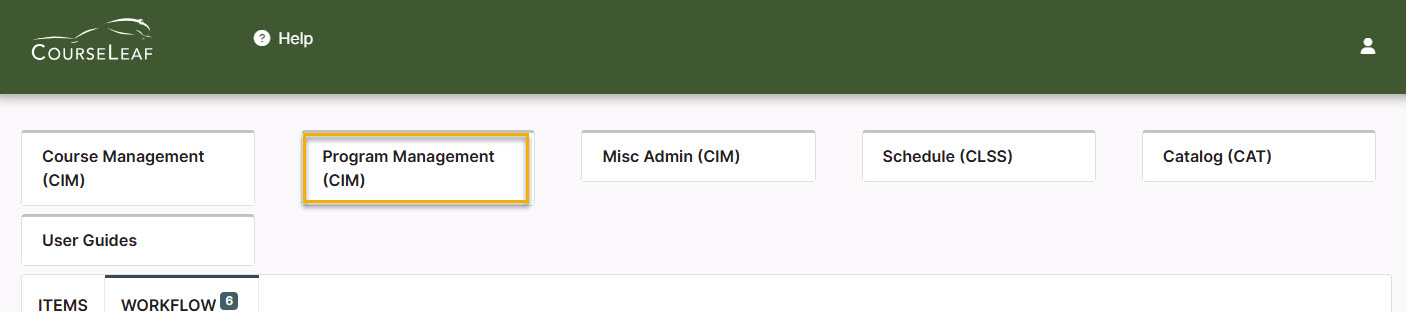
Once in the Dashboard, click on the Program Management (CIM) Module Card to be taken to the Program Management system.
Editing a Course List Table Steps
Step 1: Search for the Program to Edit
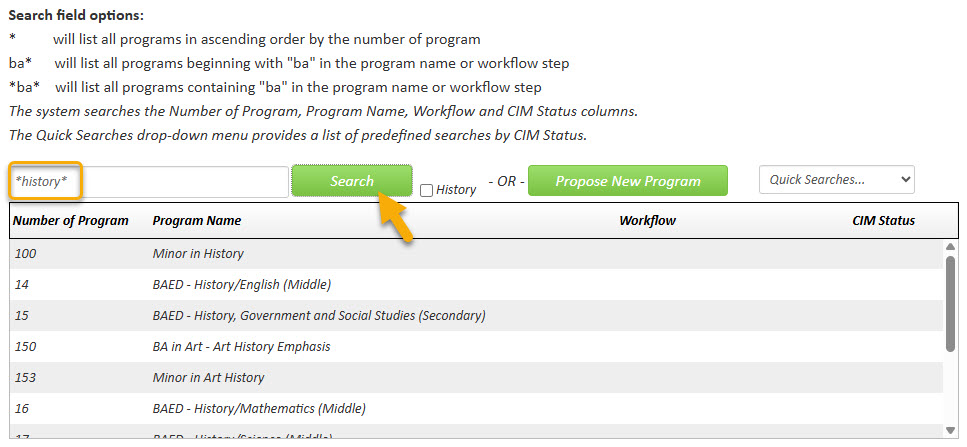
In the Program Management system there are various ways that you can search for the program you want to edit. You can type in the program number or use the asterisk as a wildcard to search for words in the Program Name:
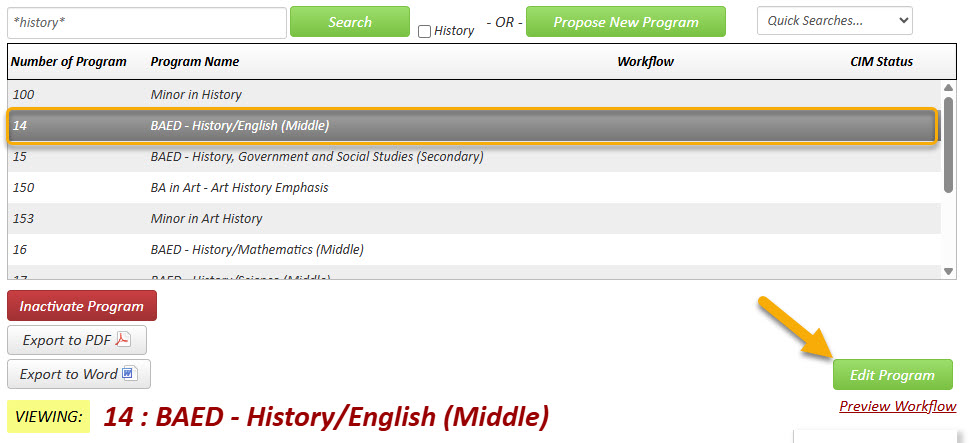
Click on the program that you want to edit to select it. Then click the green ‘Edit Program’ button:
Step 2: Opening Course List Table Editor
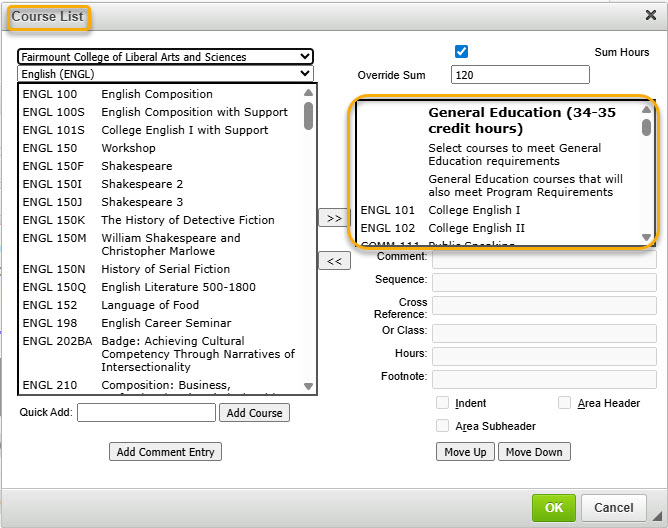
A new window will open displaying the current values of each field for this program. Scroll down to the ‘Admissions’ or ‘Requirements’ area that contains the table you want to edit. The table is outlined in blue. Double-click anywhere within the blue outline to open the Course List table editor. The editor will show all of the courses currently in the table on the right-hand side.
Step 3: Removing Courses
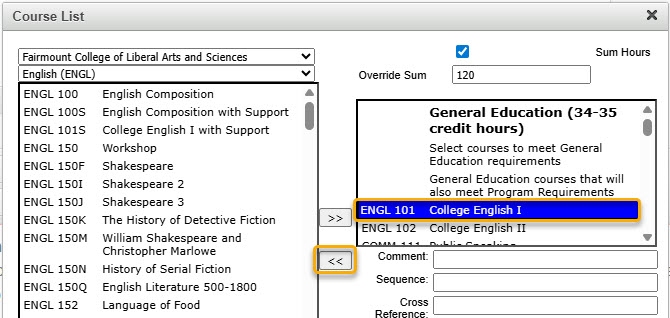
To remove a course from the table, select the course in the right-hand box that you want to remove and then click on the left-pointing arrows:
Step 4: Adding Courses
There are two ways to add courses to your table:
Option 1: Use the drop-down arrows on the left-hand side of the editor. You can search by college and subject to find a list of all available courses. Select the course you wish to add and then click on the right-pointing arrows:
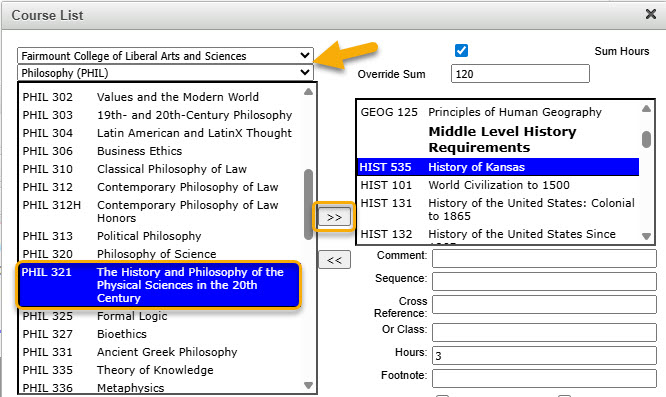
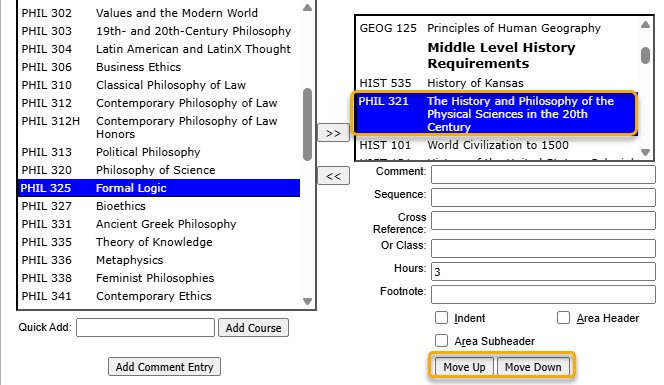
This will move the selected course (PHIL 321) into the right-hand box. You can then use the ‘Move Up’ or ‘Move Down’ button to position this course within the other required courses:
Please Note: inactivated courses or new courses that haven’t been fully approved in workflow will not be found in the list of available courses. In order to add these courses to your table, you must use the ‘Quick Add’ feature illustrated in Option 2 below.
Option 2: The ‘Quick Add’ field allows you to manually type in the course you want to add without searching for them. Type in the subject code and number of the course you want to add, and then click on the ‘Add Course’ button. The subject code must be typed in all caps, and there must be a space before the number for the system to recognize the course. Do not type in the course title in the ‘Quick Add’ box.
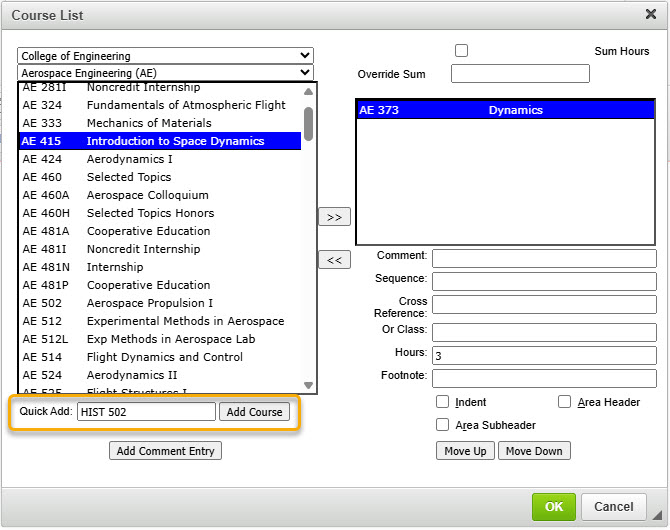
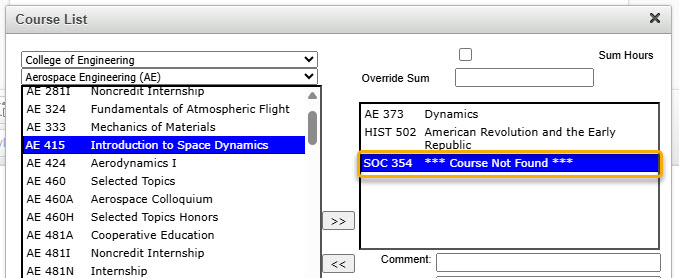
Please Note: If you are adding a new course that is going through workflow for approval, you can add it to your table with the Quick Add feature. The course will appear as “Course Not Found” in your table. However, once the course is fully approved and out of workflow, the table will automatically fill in the correct information.
Step 5: Adding Comments
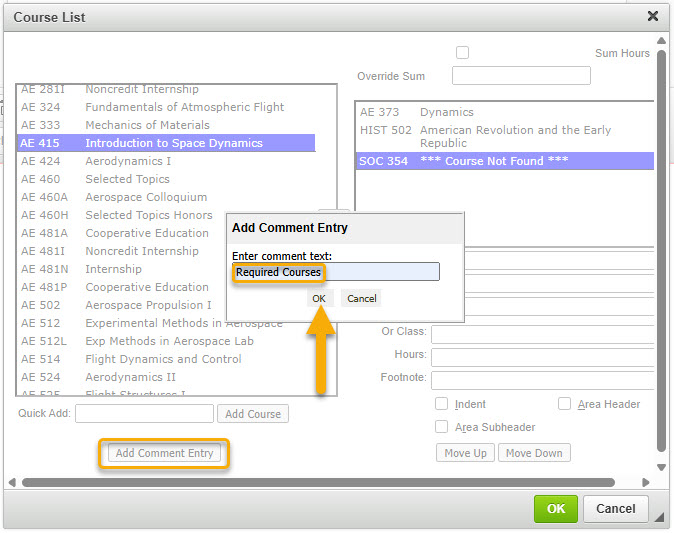
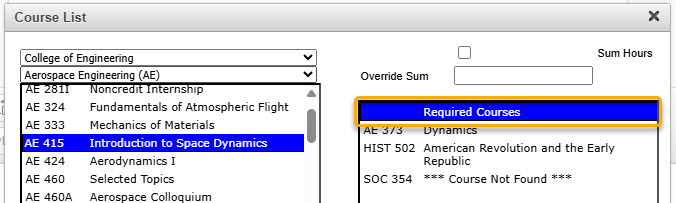
To add a comment on its own line or header to your course list, use the ‘Add Comment Entry’ button located in the bottom left corner of the table editor.
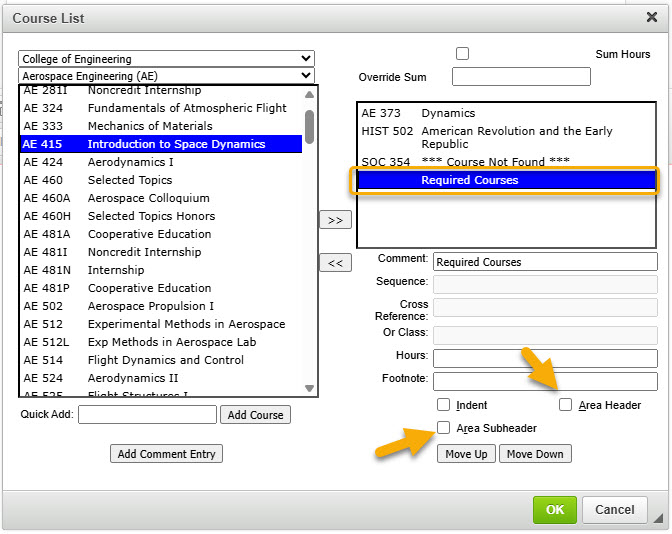
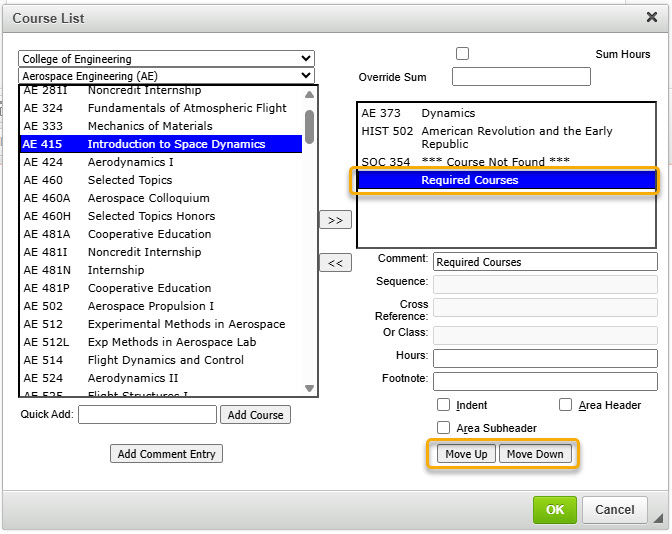
Once your comment is showing in the right-hand list of requirements, you can use the ‘Move Up’ or ‘Move Down’ button to position it where you want and the ‘Area Header’ or ‘Area Subheader’ checkboxes to format how it is displayed:
Comments can also be used to add lines about requirements such as how many electives to select from a list or a certain type of elective course that students need to select.
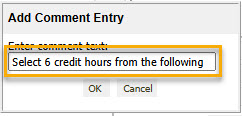
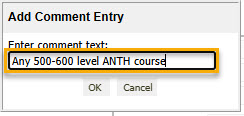
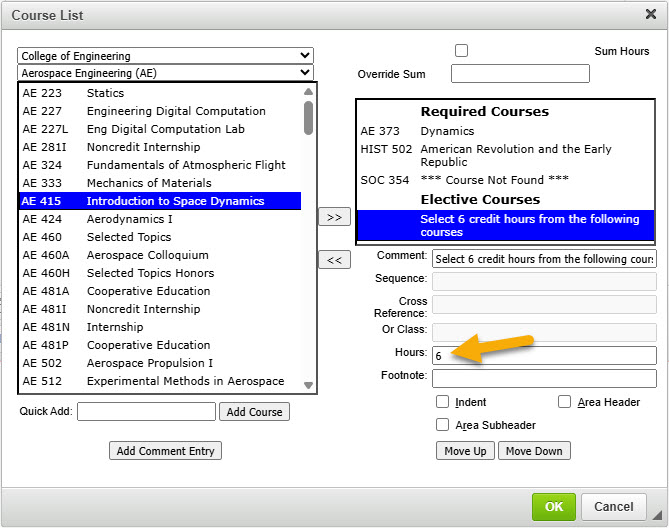
With these comments, credit hours can be added by typing in the ‘Hours’ field. These hours will then be added to the Credit Hour column of the course table.
Step 6: Moving Text and Courses
To move text and/or courses around in your table, select the item in the right-hand box that you want moved and then use the ‘Move Up’ and ‘Move Down’ buttons:
Step 7: Additional Features
The items on the bottom right side of the table editor are additional features that you can perform to the course you select in the box above:
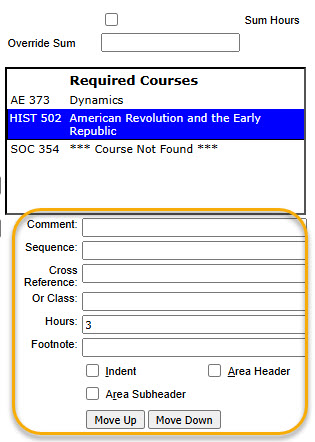
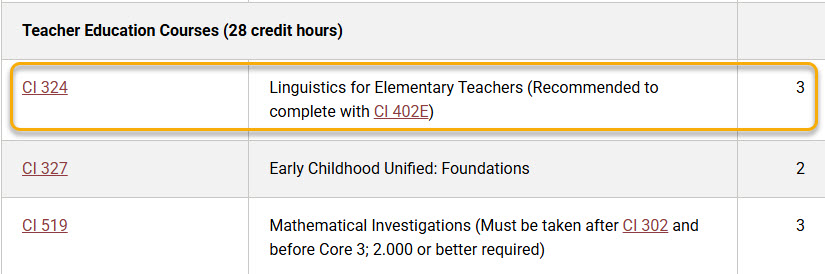
Comment – add parenthetical text that will appear next to the selected course. (This field displays differently than when you use the ‘Add Comment Entry’ button located in the lower left of the table editor window.)
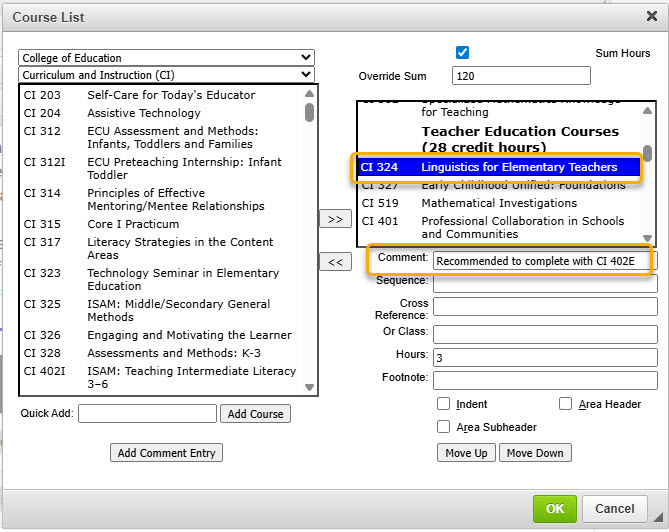
Displays like this in catalog:
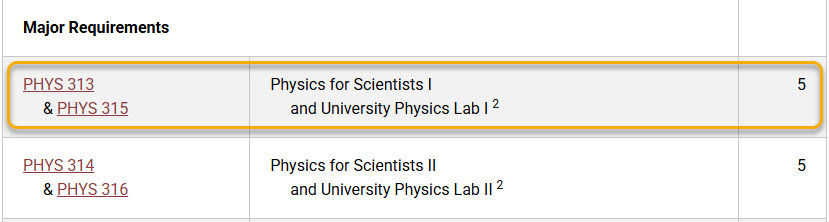
Sequence – list other courses that must be taken with or in addition to the selected course (creates an ‘&’ situation: PHYS 313 & PHYS 315)
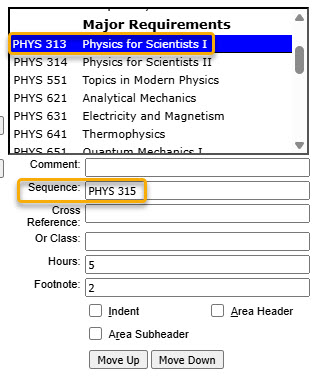
Displays like this in catalog:
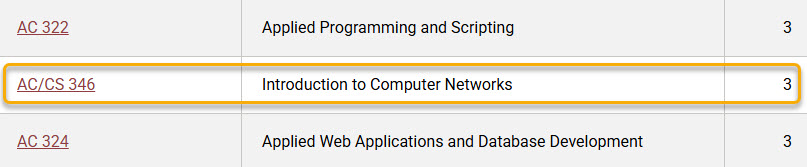
Cross Reference – if the selected course is cross-listed with another course, you can list the other cross-listed course here (i.e. AC 346/CS 346)
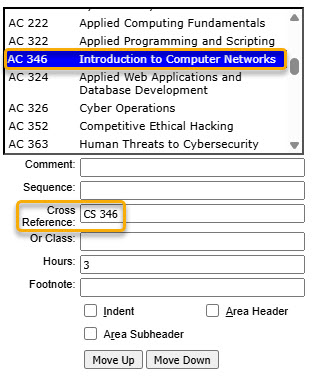
Displays like this in the catalog:
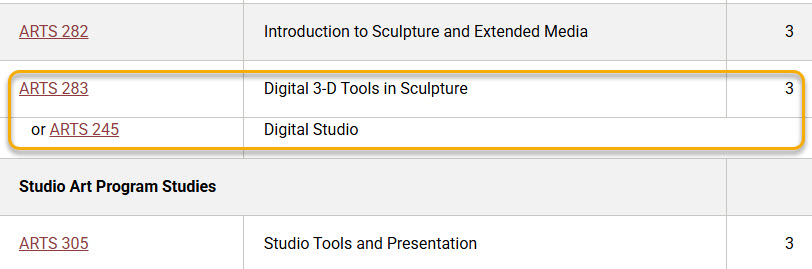
Or Class – list alternative course(s) to the selected course (creates an ‘OR’ situation: ARTS 283 OR ARTS 245)
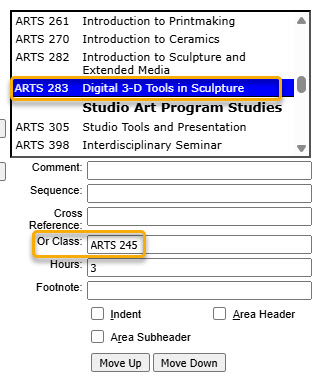
Displays like this in the catalog:
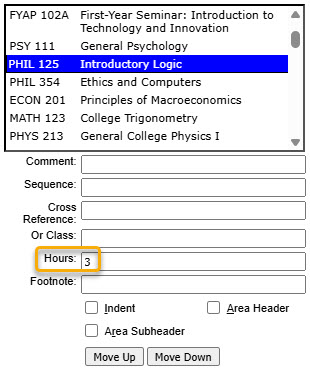
Hours – this field will automatically be populated with the credit hours of the selected course; you can change this number if necessary (i.e. a repeatable course such as a thesis course needs to be taken multiple times for a total of 8 credit hours)
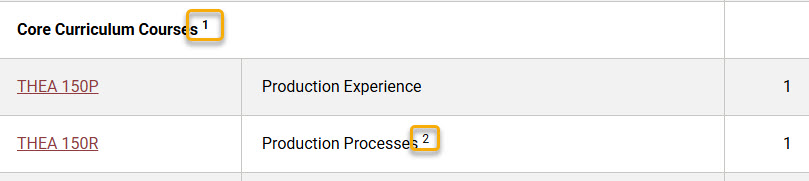
Footnote – if you need to reference a footnote, add the footnote number here
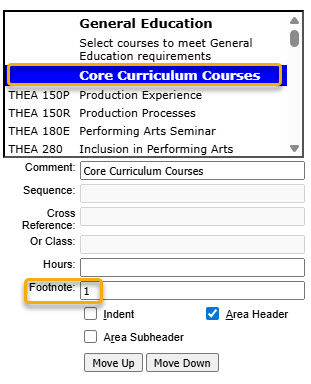
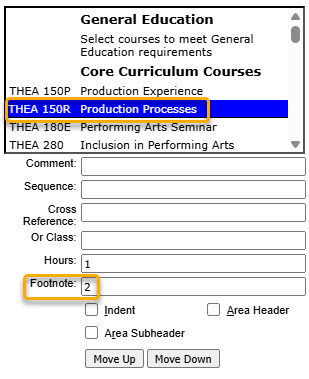
Displays like this in catalog:
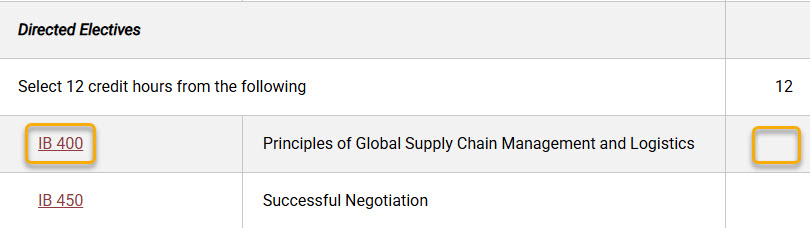
Indent – check this to indent the course/comment in the table; for indented courses, their credit hours will no longer show in the table (this is typically used when listing possible elective options students can choose from)
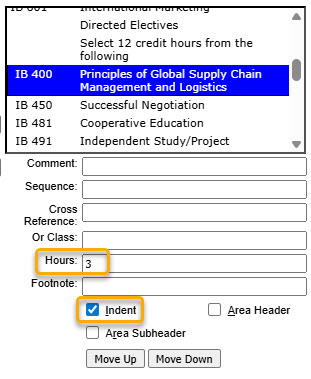
Displays like this in catalog:
Step 8: Sum Hours
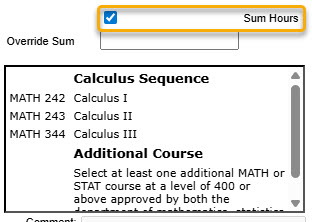
You can choose for your course table to show the total number of credit hours by checking ‘Sum Hours’ located in the top right corner of the table editor.
Displays like this in catalog:
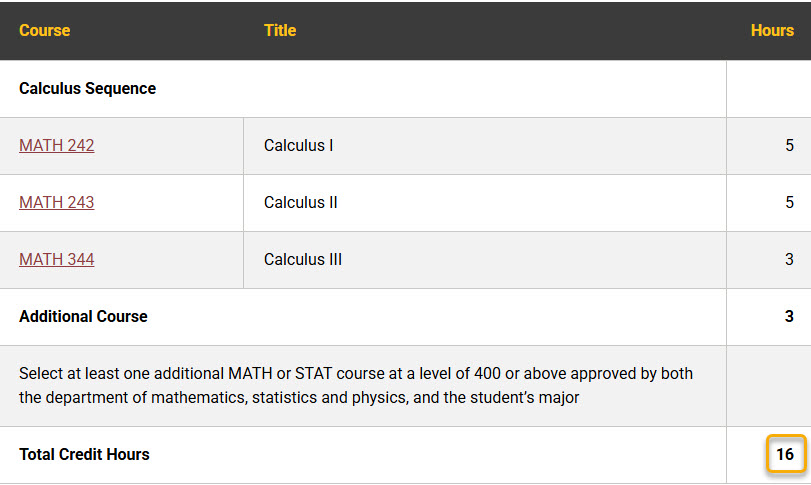
You can also override the sum by typing in the total required credit hours.
Step 9: Finishing Table Edits
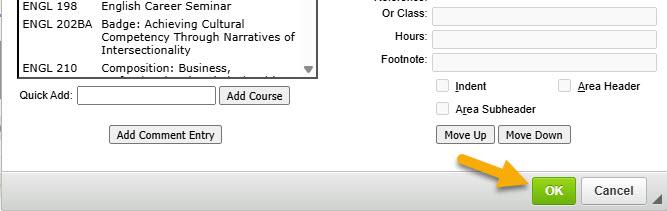
When you are done making the necessary changes, make sure to click on the green ‘Ok’ button to save the changes to the Course List table:
If you need to go back and edit the table, double click anywhere inside the inserted table that is outlined in blue.
Step 10: Submit to Workflow
Make any other desired changes to the program and then scroll to the bottom of the proposal and click on the green 'Start Workflow' button to submit this proposal to the electronic workflow process. If you need to save your work and come back at another time, click on the gray 'Save Changes' button and then edit this program later.
