

Finding a COURSE Proposal in Workflow
Use this guide to learn how to find a specific course proposal in the CIM workflow.
Accessing the Dashboard
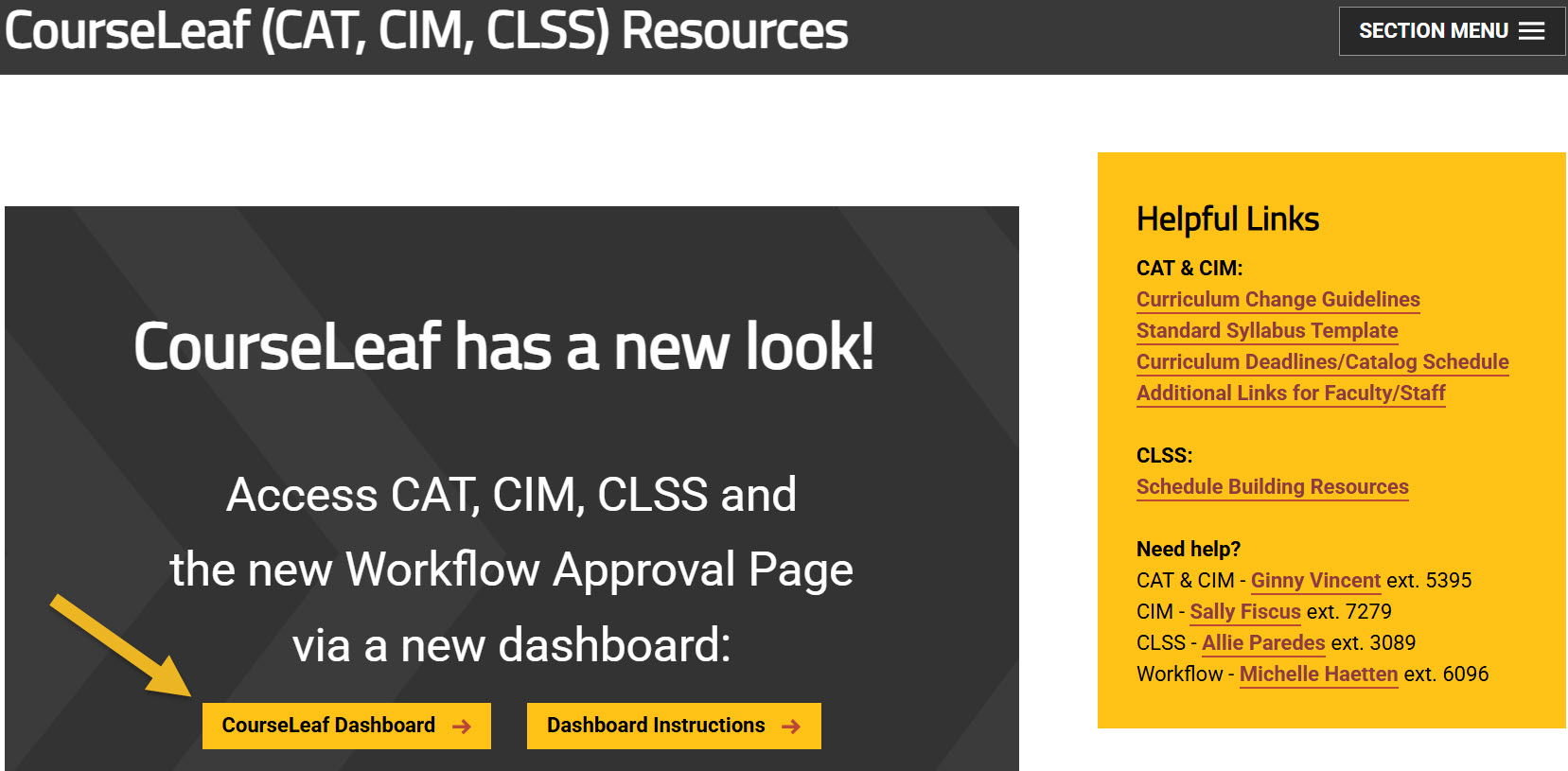
Using any web browser except Internet Explorer, go to the CourseLeaf (CAT, CIM, CLSS) Resources page (https://wichita.edu/courseleaf) and click the gold CourseLeaf Dashboard button link:
Accessing Course Inventory Management
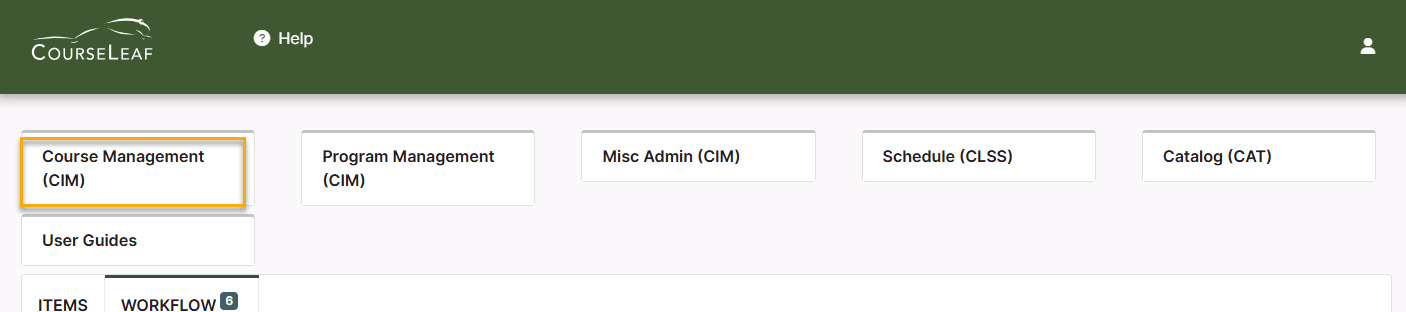
Once in the Dashboard, click on the Course Management (CIM) Module Card to be taken to the Course Inventory Management system.
Searching for a Course Proposal
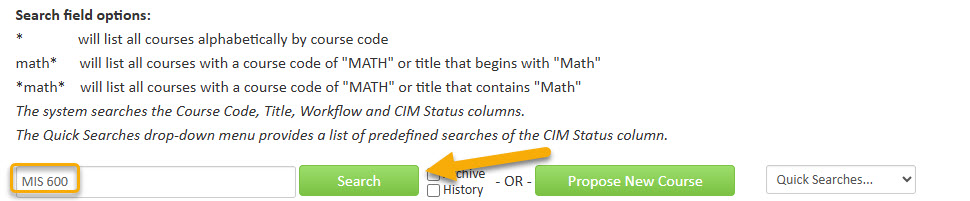
In the Course Inventory Management system, search for the course by putting the course subject and number in the search field and then clicking the green ‘Search’ button:
The search results appear and the ‘Workflow’ column will show the step that this course proposal is currently at in workflow:

If you scroll down, you can see all of the approval steps in workflow that have been completed (green) and those that are upcoming (gray). The approval step that this proposal is currently at in workflow is shown again here in orange:
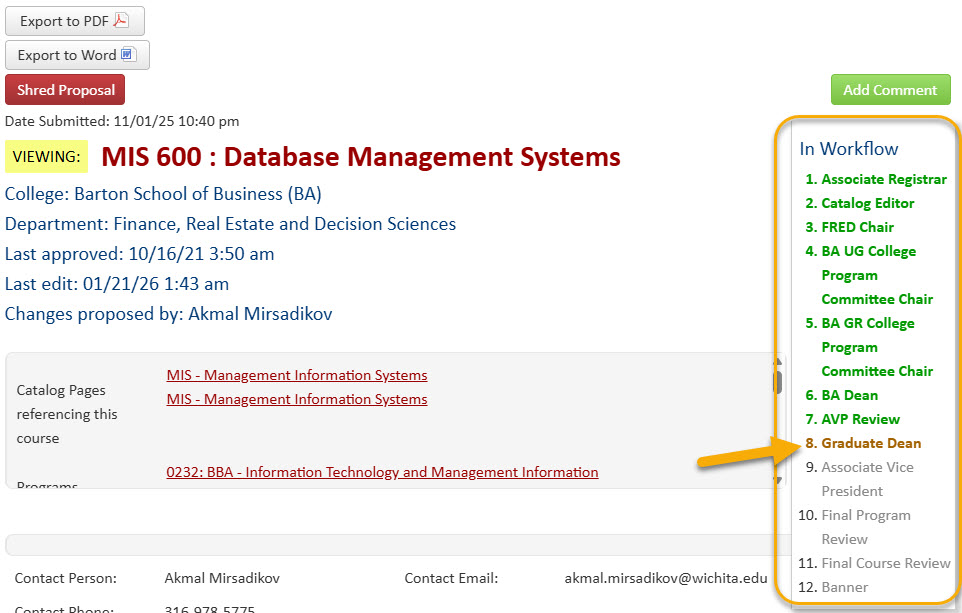
Below the ‘In Workflow’ information, you can see the date and time when each completed approval step occurred by looking at the ‘Approval Path’ information. In this example, you can see that the approval for the BA UG College Program Committee Chair was done on December 2, 2025 at 11:22 am by John Perry:
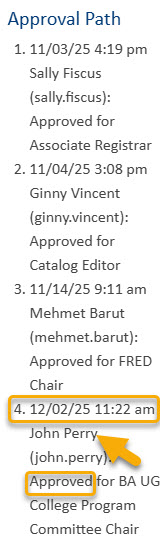
The proposal moved to the BA Dean step at the time of this approval.
Finding Course Proposal You Initiated/Submitted
If you are the one who initially submitted the course to workflow, you can also track the progress of the proposal directly from the Dashboard.
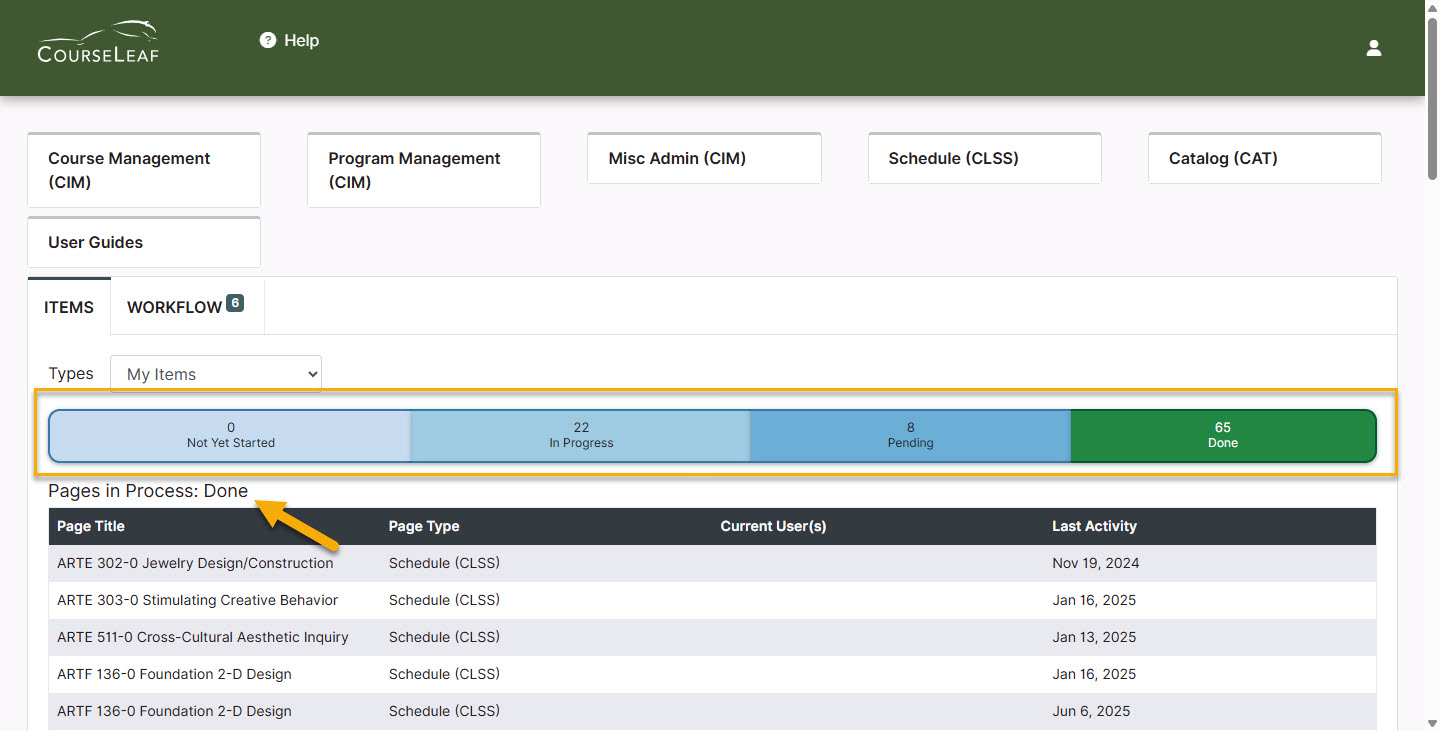
When in the Dashboard, look at the Snapshot (aka “thermometer”) under the Items tab. It will initially display items that are the Done status.
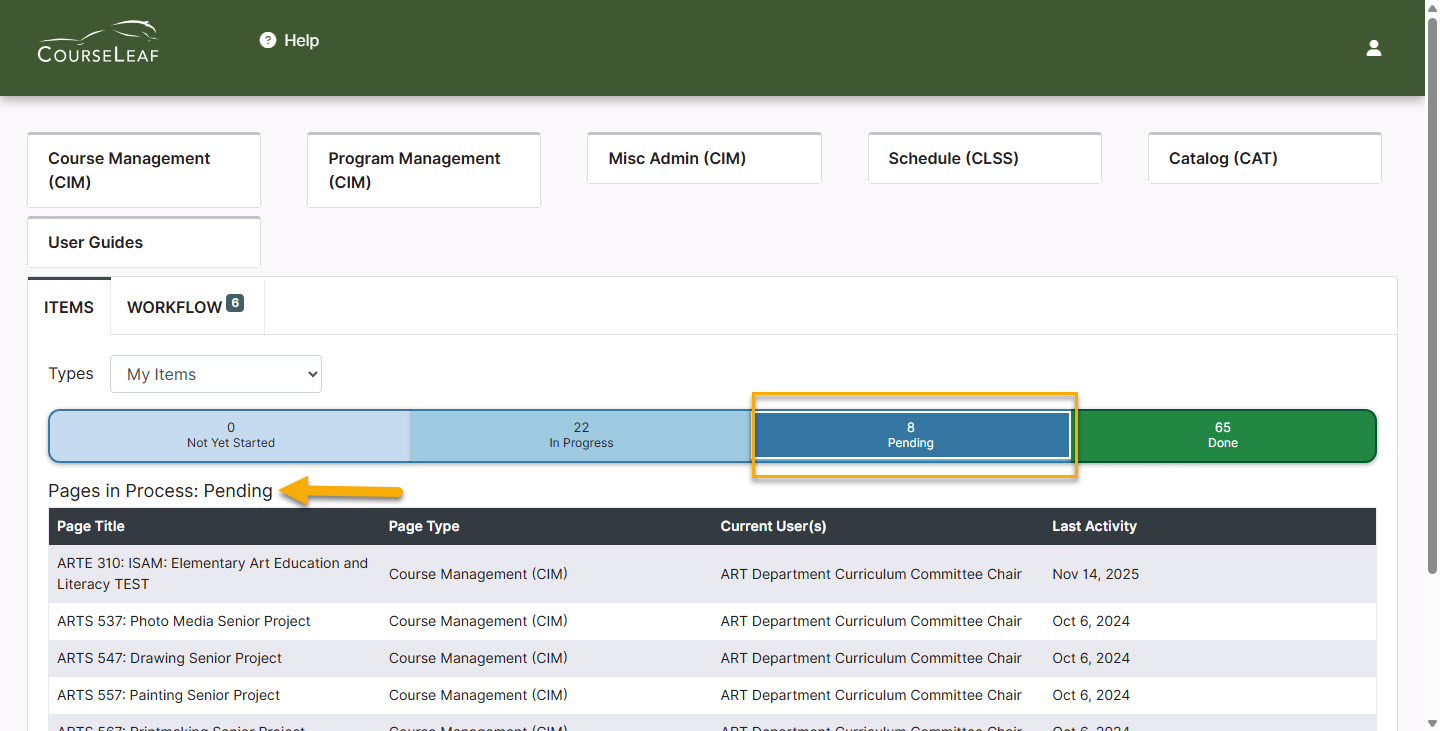
Clicking on the Pending section of the thermometer will change the list to proposals you submitted to workflow.
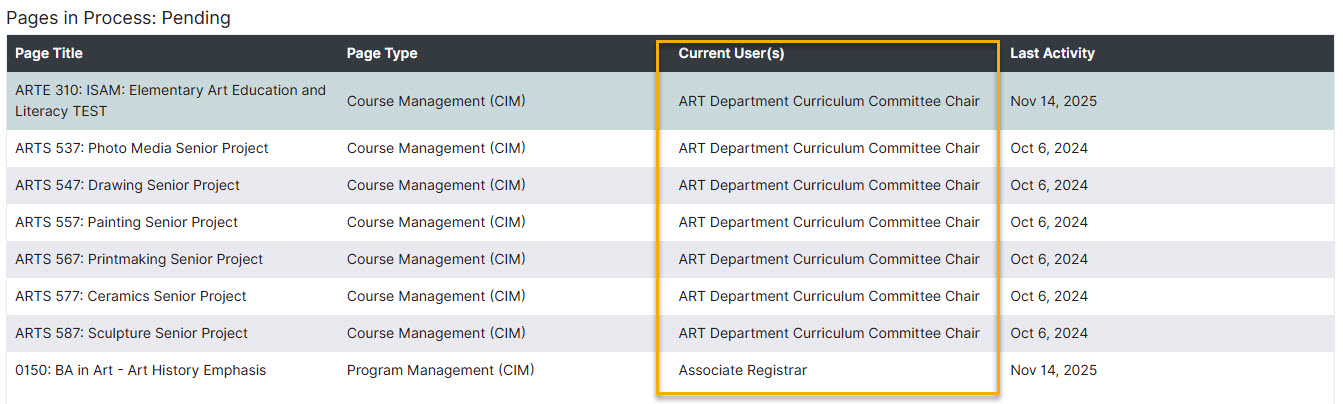
The Current User(s) column shows you at which step of workflow the proposal is.
Clicking on any of the proposals in the list will take you to view the proposal in Course Inventory Management. At that point, you can find all of the additional information described in the previous section of this guide.