

Inactivating a Course or a Cross-Listed Pair/Group
This is for when you want to inactivate an existing course or a cross-listed pair or group. Inactivated courses can be reactivated later. Please note: If the course you select to inactivate is cross-listed with other courses, all courses in the cross-listed pair or group will be inactivated. If the course being inactivated is listed as a prerequisite of another course and/or listed on a program, then the other course and/or program will need to be edited as well.
Accessing the Dashboard
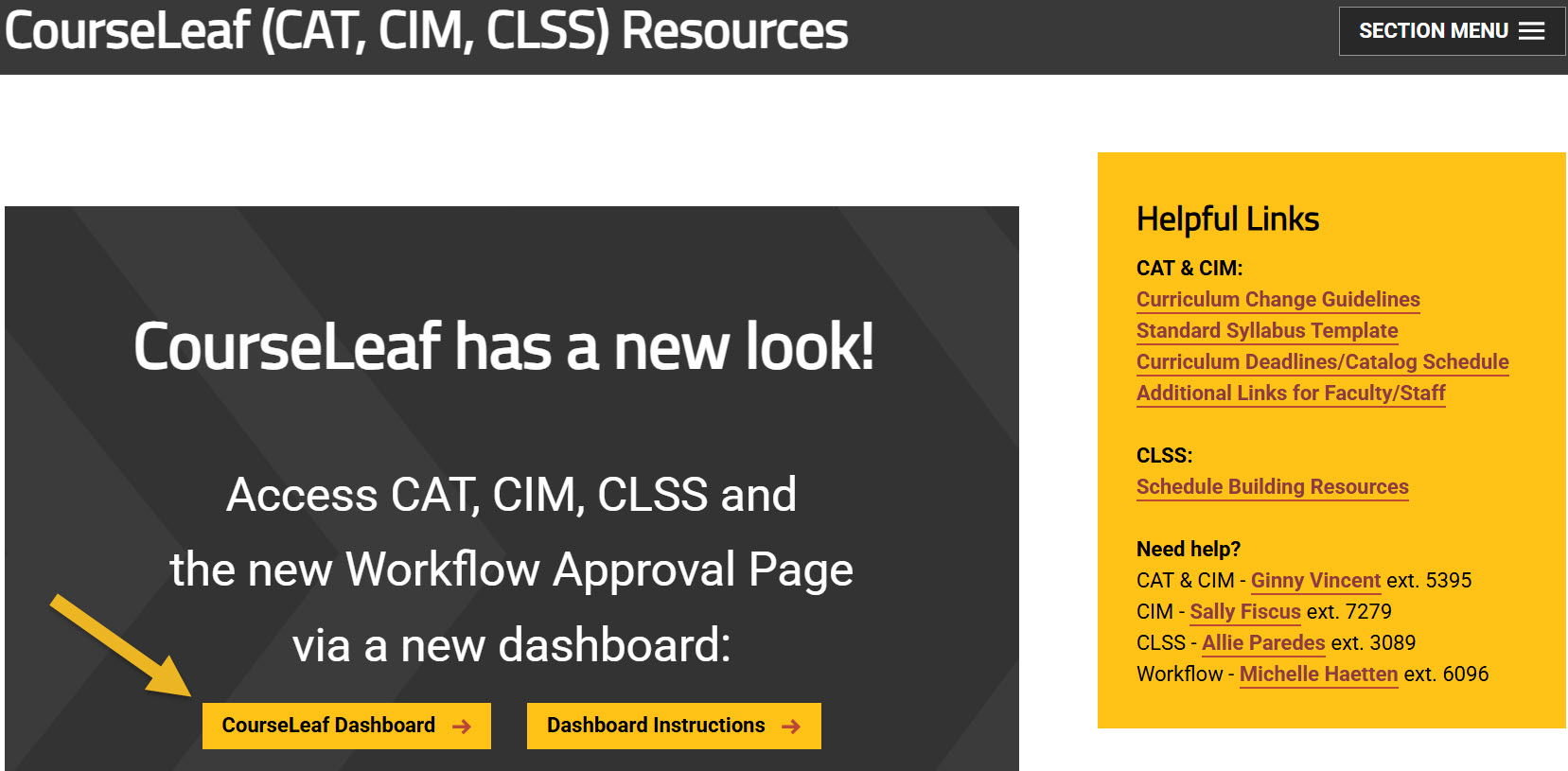
Using any web browser except Internet Explorer, go to the CourseLeaf (CAT, CIM, CLSS) Resources page (https://wichita.edu/courseleaf) and click the gold CourseLeaf Dashboard button link:
Accessing Course Inventory Management
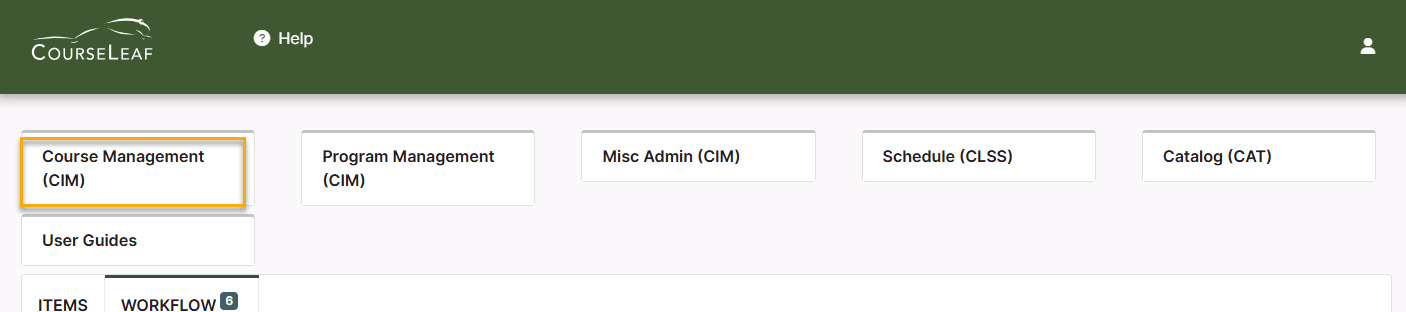
Once in the Dashboard, click on the Course Management (CIM) Module Card to be taken to the Course Inventory Management system.
Inactivating a Course Steps
Step 1: Finding Course to Inactivate
In the Course Inventory Management system, search for the course you want to inactivate. In the search field, type in the subject and number of the course (i.e. HIST 101) or you can search for all courses within a subject. You can also use asterisks to search for all courses that contain specific words in the course code or title.
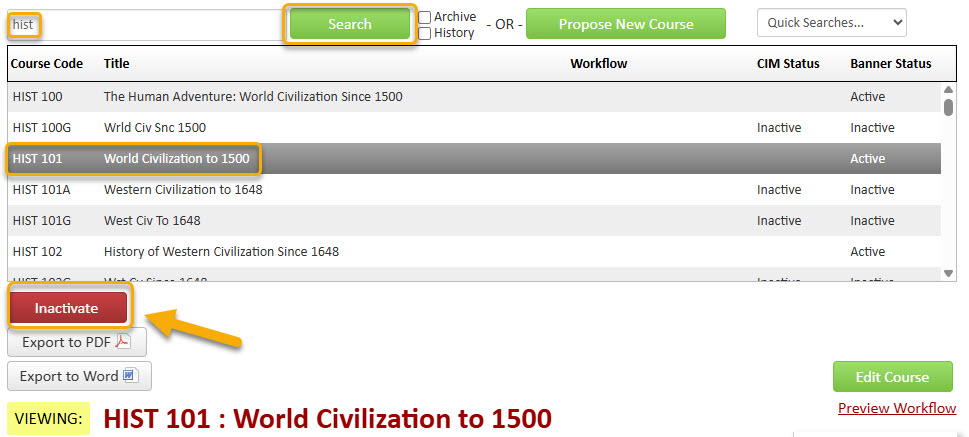
Once you have found the course you wish to inactivate, click on it to select it and
then click on the red ‘Inactivate’ button. This will open a separate window for the inactivation proposal.
Step 2: Effective Term
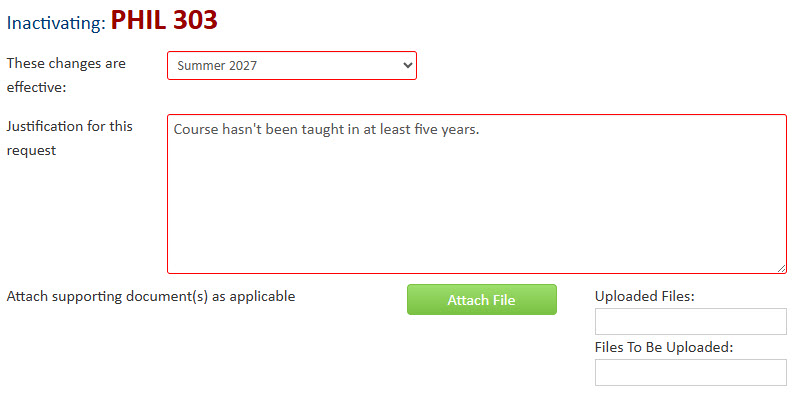
In the ‘These changes are effective’ field select the term that you want to inactivate the course. Please Note: Courses cannot be inactivated during a term that there are active sections for that course.
Step 3: Justification
In the ‘Justification for this request’ field explain why the course is being inactivated. If you have supporting documents for the inactivation of the course, you can attach them to the proposal as well.
Step 4: Start Workflow
Once you have filled out the inactivation proposal form, you will want to start the proposal through the electronic workflow approval process by clicking the green ‘Start Workflow’ button.
