CourseLeaf Dashboard User Guide
The CourseLeaf Dashboard is the hub for all catalog (CAT), curriculum (CIM), and scheduling (CLSS) needs. This guide walks you through the different features of the CourseLeaf Dashboard including accessing CIM, CAT and CLSS; viewing the status of your proposals (items); and approving proposals.
Accessing the Dashboard
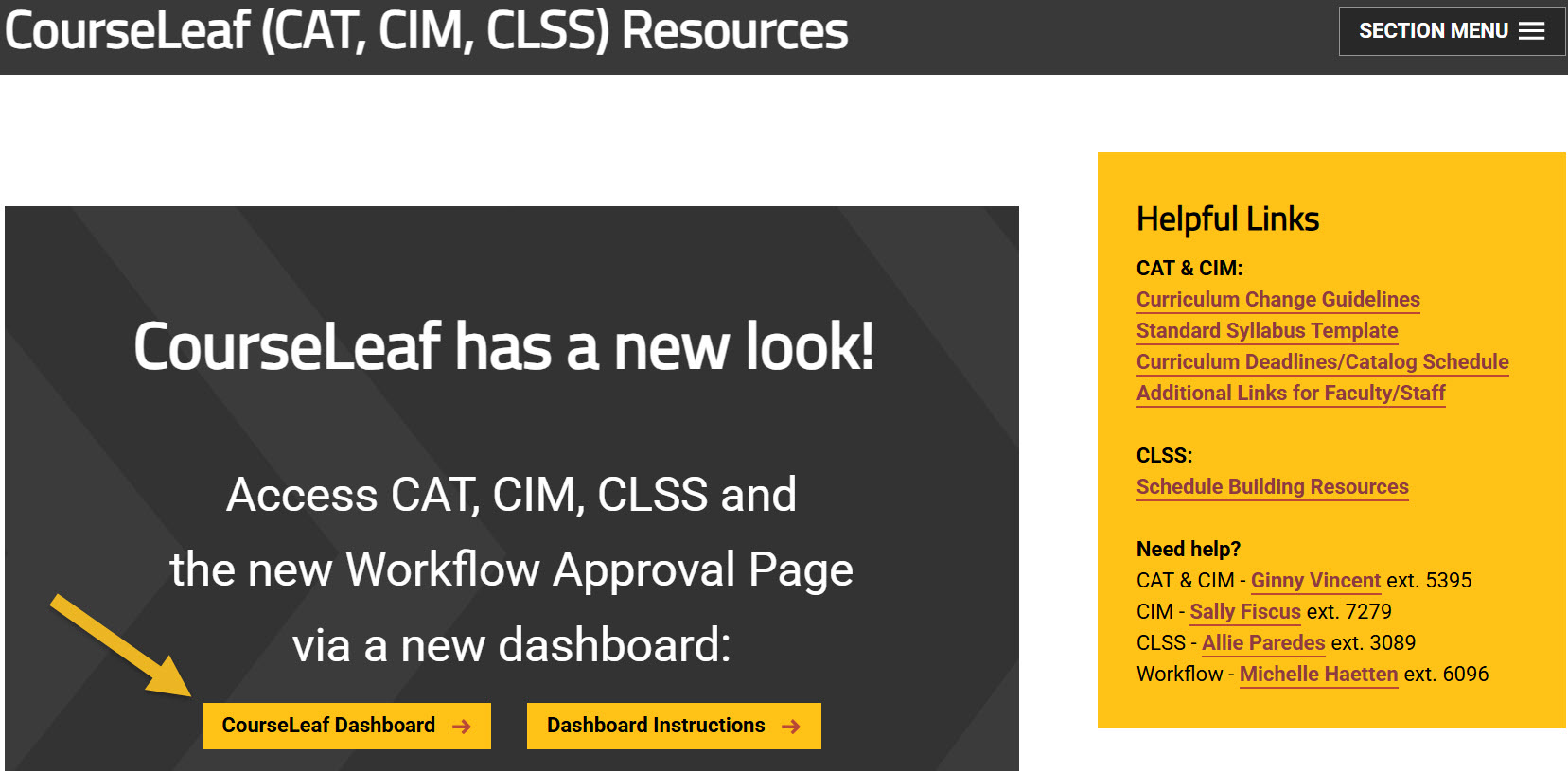
Using any web browser except Internet Explorer, go to the CourseLeaf (CAT, CIM, CLSS) Resources page (https://wichita.edu/courseleaf) and click the gold CourseLeaf Dashboard button link:
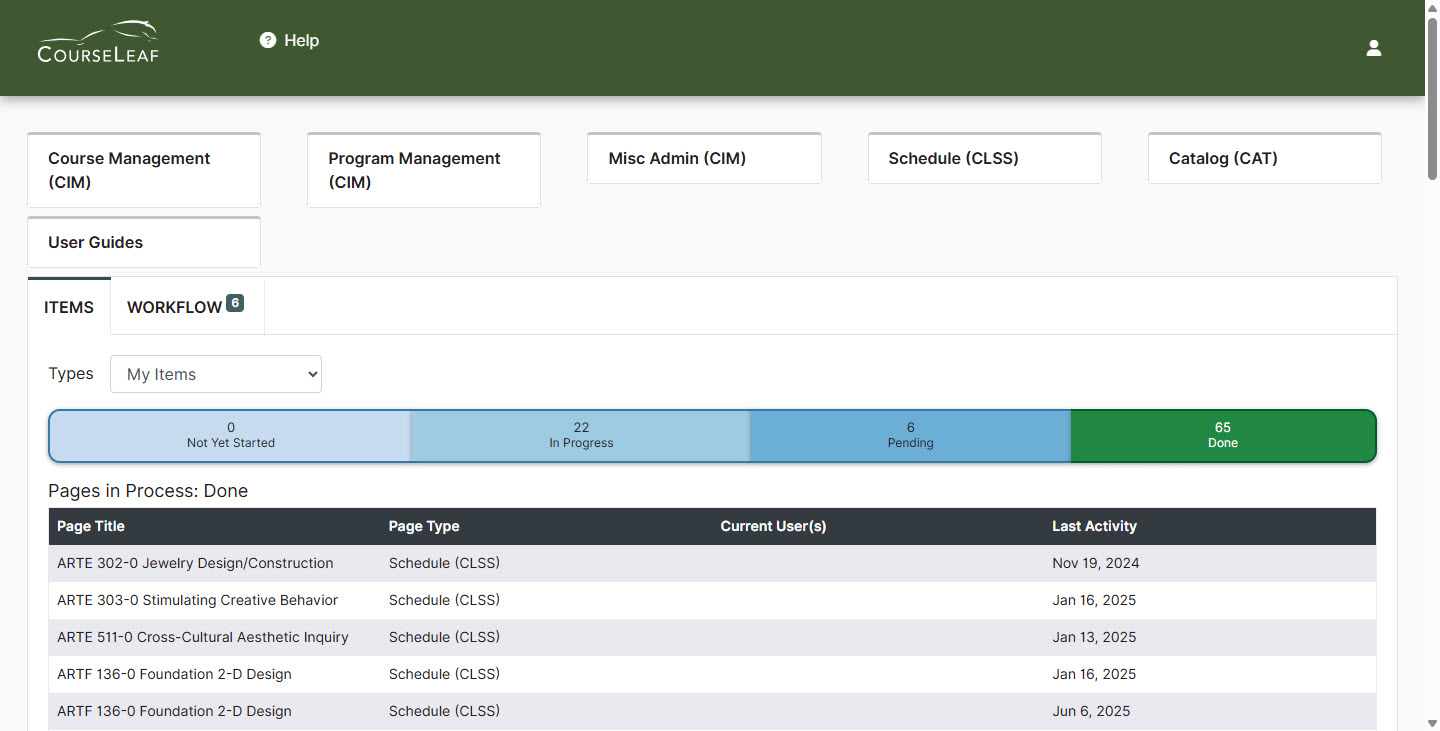
Once you login, you will see this dashboard screen:
Top Row Navigation

- The CourseLeaf Logo is a link that will return you to the Dashboard home page.
- The Help icon will open a panel on the right side of the screen. This CourseLeaf Help panel provides
another Help link that will redirect you to the homepage of the LUC (Leepfrog User
Community) Help site. The site is the generic help site maintained by CourseLeaf and
will not include information for any of Wichita State University’s customizations
or practices.
- Click on the X in the upper right corner of the Help menu to close the panel.
- Tip: Best practice is to use the WSU-specific guides or to contact the Registrar’s Office if you have any questions regarding any of our CourseLeaf products.
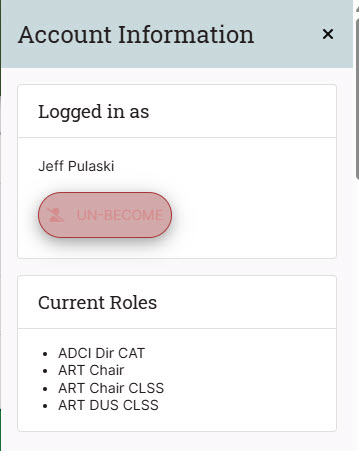
- The person icon will show your Account Information. This includes your name as well as your current role(s) in the whole CourseLeaf system.
CourseLeaf Module Cards

Under the top navigation there are cards displaying all the CourseLeaf modules at WSU. Each card is a link that you can use to access the Course Form, Program Form, MiscAdmin Form, Schedule Builder, and the NEXT (editing) Catalog. The User Guides card will take you to wichita.edu/courseleaf where you’ll find several step-by-step guides on various tasks and overall guidelines for using any of the CourseLeaf modules.
All Module Card links open in a new browser window.
Items Tab
The Items tab of the Dashboard displays module information customized for whoever logged in.
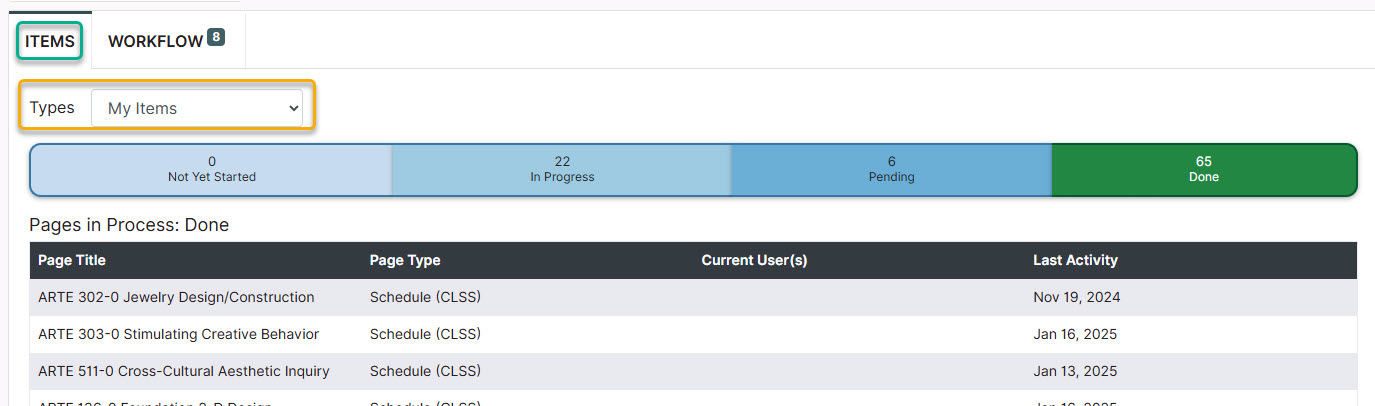
By default, the Items tab displays the My Items option in the Types field. My Items represent the proposals you initiated in CIM, CAT and/or CLSS.
This is followed by a colored Snapshot (aka “thermometer”) that groups the proposals (items) from all modules according to their status. The status categories are:
- Not Yet Started – Items that you have newly created but not submitted to workflow (only for CAT and CLSS).
- In Progress – Previously existing items that you have edited but not submitted to workflow (only for CAT and CLSS).
- Pending – Items you submitted that are currently in workflow (for CAT, CIM, and CLSS). You can use this to see where your proposals are in the workflow.
- Done – Your items that have been approved at each workflow approval step so are no longer in workflow and considered fully approved (for CAT, CIM, and CLSS).
The Dashboard will default to showing items in “Done” status. To see the items in the other categories, click on the area of the thermometer you wish to view.
Workflow Tab
The Workflow tab sits to the right of the Items tab. Whereas the Items tab allows you to track items you initiated in the system, the Workflow tab is for those in approval roles to view items they need to approve. This essentially replaces the Approve Pages link within previous CourseLeaf versions.
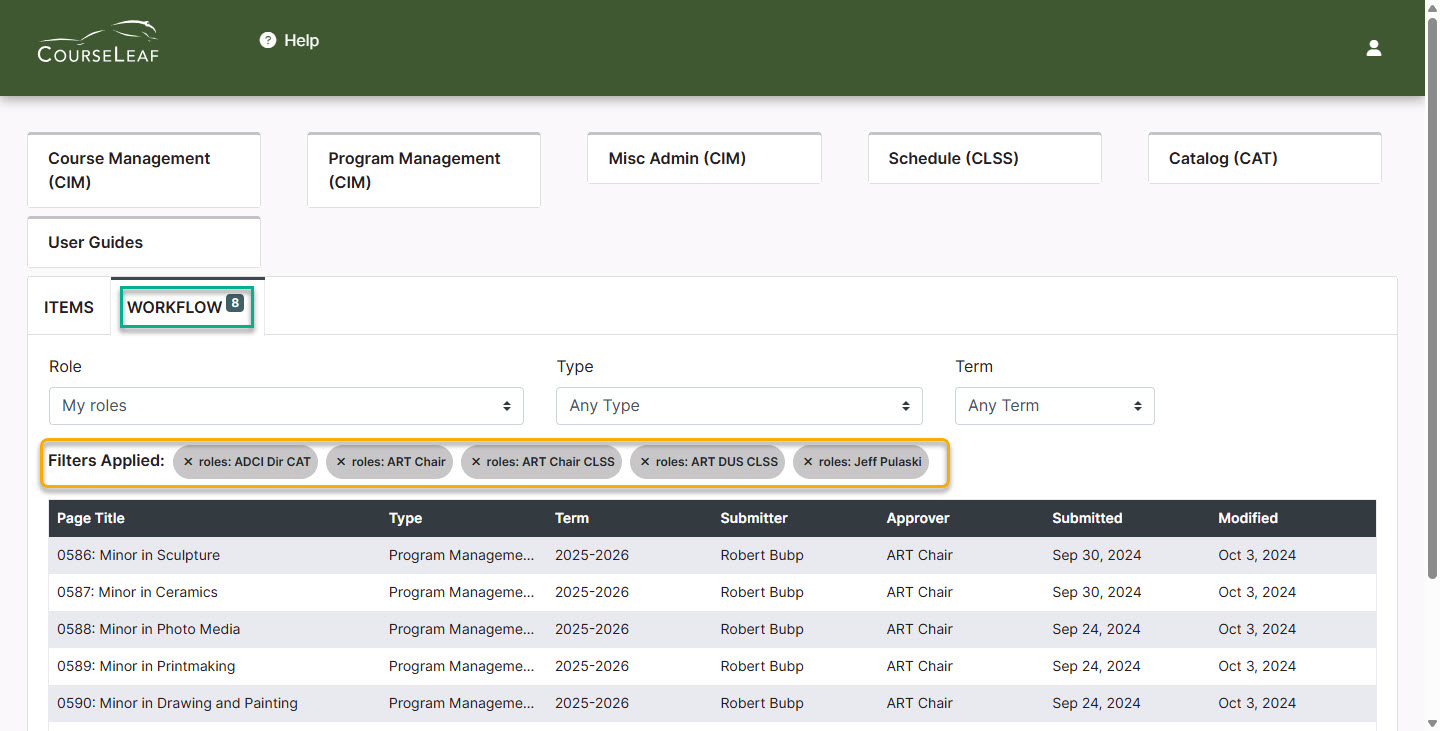
If you have items in your queue(s) there will be a number indicating how many on the Workflow tab. The Dashboard automatically selects My roles under the Role dropdown. This controls the Filters Applied and displays them immediately underneath (the filters are all roles that the logged-in individual is in).
The roles represented in the Filters Applied area will match the roles listed in the Current Roles box when you click on the person icon in the Top Row Navigation.
If you don’t want to see a role represented, you can click on the X next to that role. The resulting list of workflow items will update to remove items for that role.
If you have more than one role, the items awaiting your approval will all appear in the same list. You can differentiate your roles by looking at the Approver column.
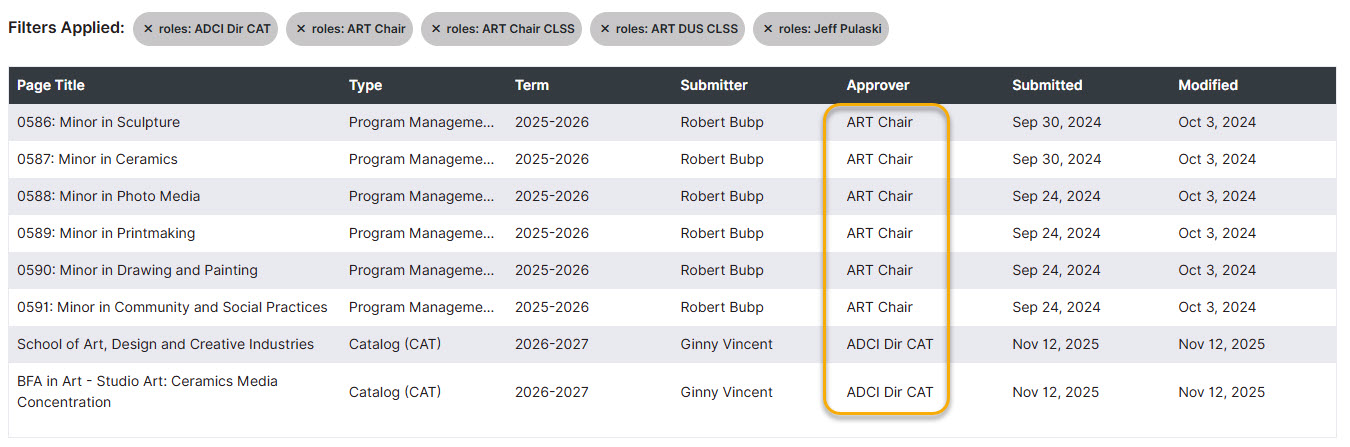
You can click any of the column headings to sort the list by that criteria.
Columns in the table right below the Filters Applied area are as follows:
- Page Title: Title of the item in workflow
- Type: Module the item in workflow is from
- Term: Semester or catalog year the item in workflow is effective for
- Submitter: Initiator of the changes that are in workflow
- Approver: Role or user who currently needs to act on the item
- Date Submitted: Date the item began its approval path
- Modified: Date the item was last updated or approved
Clicking on any of the items in the Workflow tab will open the Approve Pages Preview Screen within the Dashboard. This allows you to approve items in your queue(s) from the Dashboard without having to go to the previously used Approve Pages link.
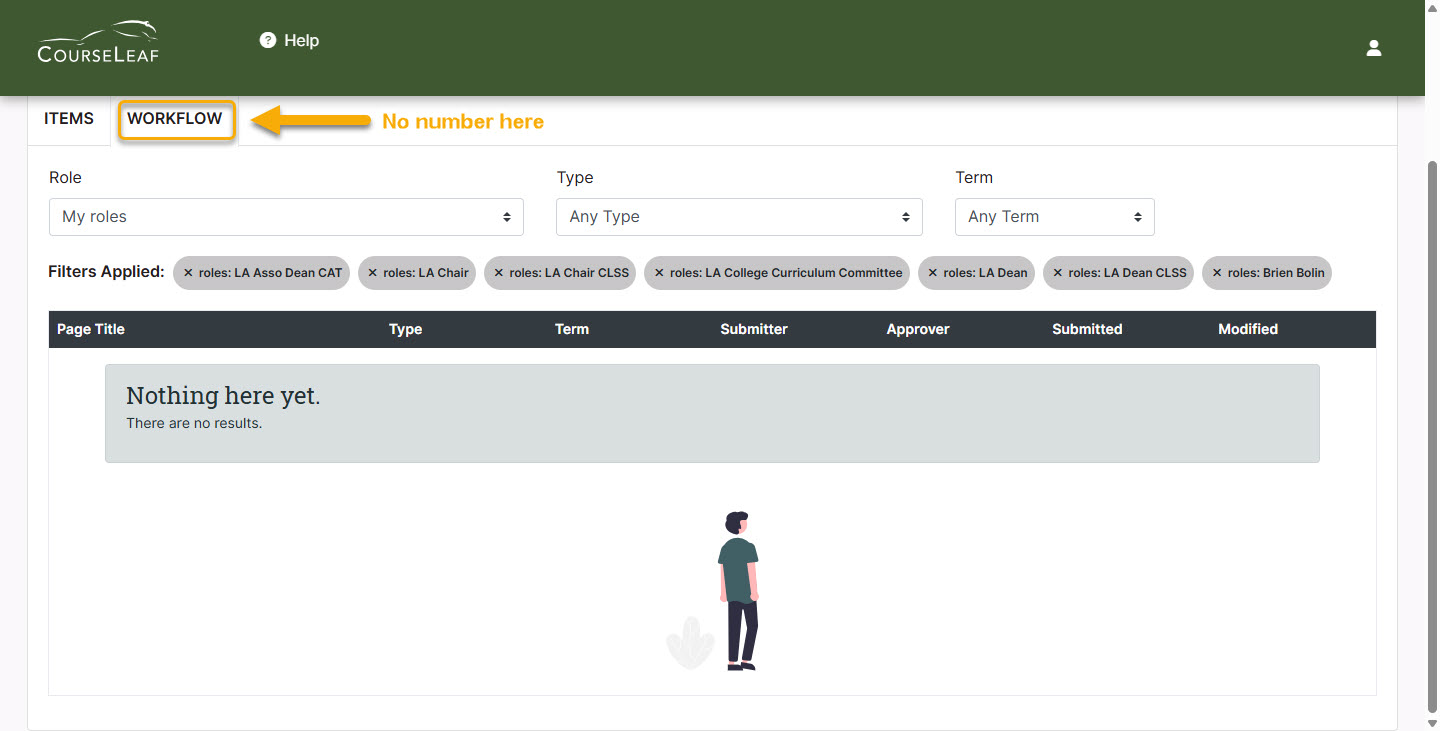
For more details on how to approve items, see the Approving CIM Proposals guide at wichita.edu/courseleaf. If there are no items awaiting your approval in any of your roles, then the Workflow tab will look like this: