About Office 365
Office 365 for WSU Faculty and Staff can be downloaded onto personal devices using the instructions below. For WSU owned devices, an updated version of Office 365 can be downloaded from the Software Center on Windows PCs or Self-Service on a Mac. Contact the Help Desk at 978 4357, option 1, for assistance.
Microsoft Office 365 contains: Excel, Word, PowerPoint, OneNote, OneDrive storage and more!
A total of five (5) installations of Office 365 are allowed on PCs, Macs, tablets or smart phones. WSU does not recommend storing FERPA protected information on OneDrive.
How to Access Office 365 Online
To access Office 365:
- Go to o365.wichita.edu
- Log in:
Username: your myWSUID@wichita.edu (e.g. A123Z987@wichita.edu)
Your myWSU ID Password
At the top of the screen, shown below, note the ability to access various Microsoft Applications online, without downloading them. These can be accessed under “Apps” at the top of the screen, or by selecting the launcher grid in the upper left.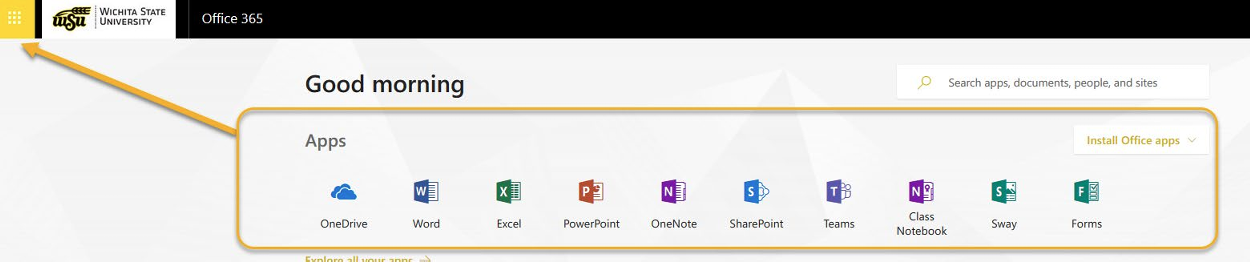
- For home computers only: to download desktop applications, select Install Office Apps in the upper right, and select the first option with the down arrow.
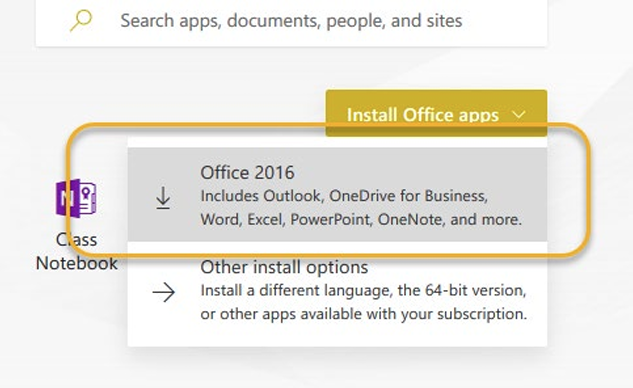
- Users may be asked to enter login credentials again upon installation.
- At any point, check the number of active installations by clicking on your initials
in upper right and selecting My Account.
Note: A total of five (5) installations of Office 365 are allowed on PCs, Macs, tablets or smart phones.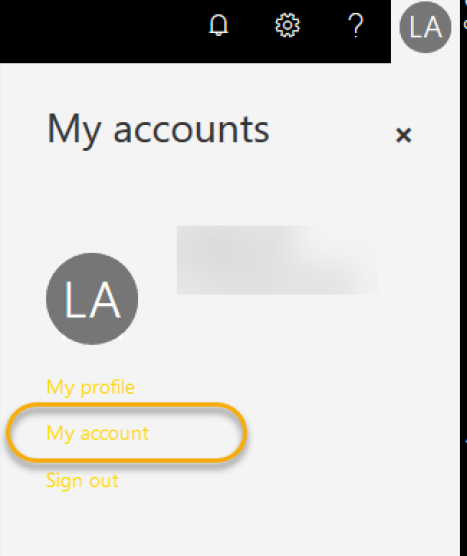
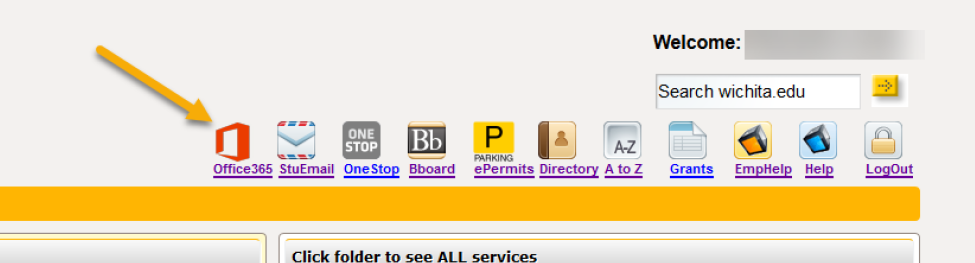
Users may also access the 365 subscription by logging in to myWSU and selecting the Office 365 icon in the upper right.