

Local versus Online Archive
There are a couple of options for archiving mail in Outlook at WSU: local and online. Either method will free up space in the user’s mailbox.
A local archive is stored on the user’s computer, not in a cloud based location online. Because of this, users with local archives may only access their archive when they have access to the computer where the archive is stored. A local archive may easily be set up by the user, with the steps outlined below.
Online archives are stored in the cloud, which means the user may access the archive from anywhere they can access their email. Unlike local archives, online archives cannot be set up by the user, and must be created by WSU ITS.
Local Archive
To create a local archive:
- Go to Home tab, then New Items, then More Items, then select Outlook Data File.
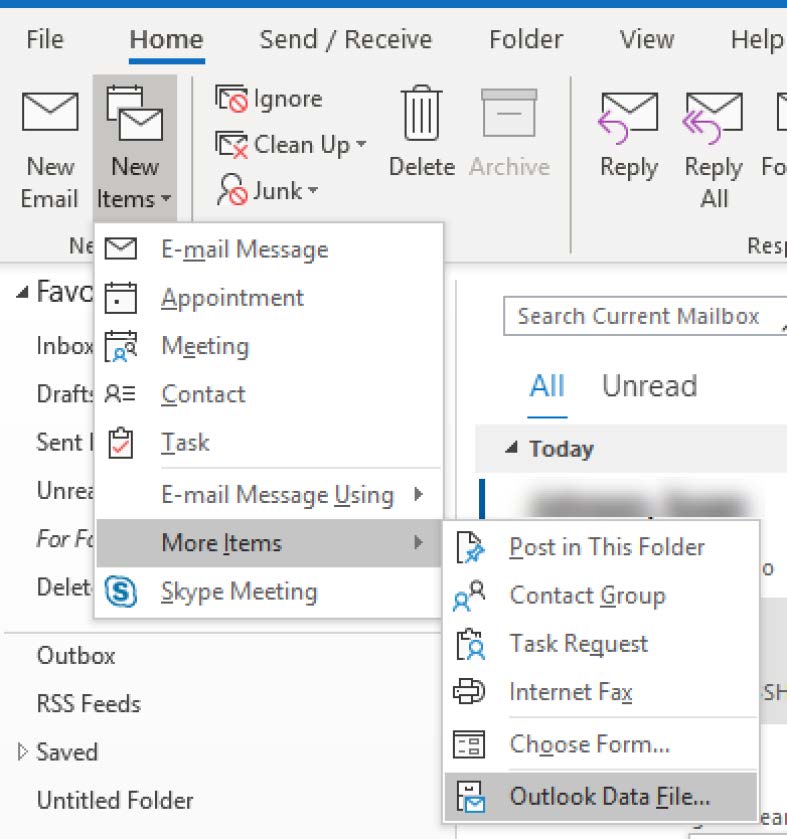
- Name the archive, and select a location. It is recommended to keep the default location
selected by Outlook, so it will be easier to find on the machine, if needed.

- Press OK.
The newly created Archive will appear on the left side of the main screen, underneath the user’s Inbox. The title created by the user is how it will display.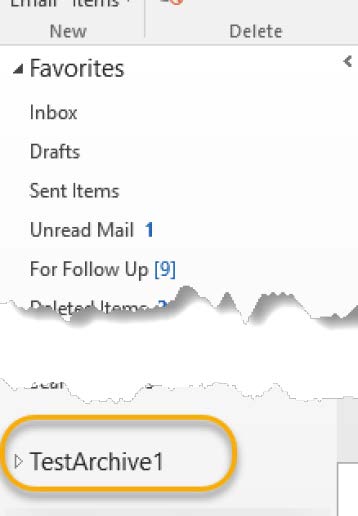
Managing an Online Archive
The newly created archive will be empty until the user moves emails into the archive.
- Select the emails to be archived (remember multi-select is possible by holding down the ctrl or shift key).
- Click on the highlighted emails and drag them to the new Archive folder.
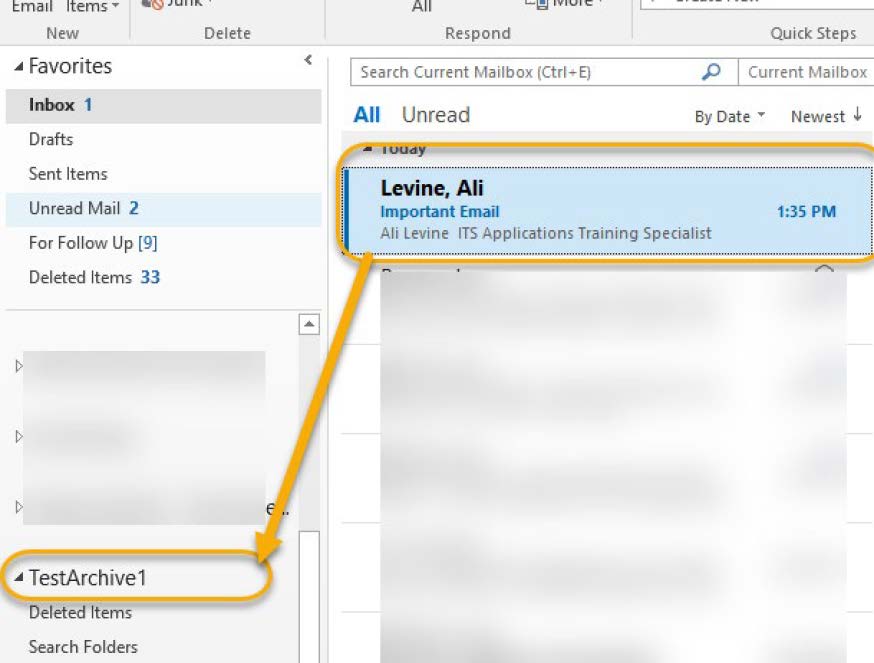
Another option: With the emails selected, right click and select move, then [Archive name].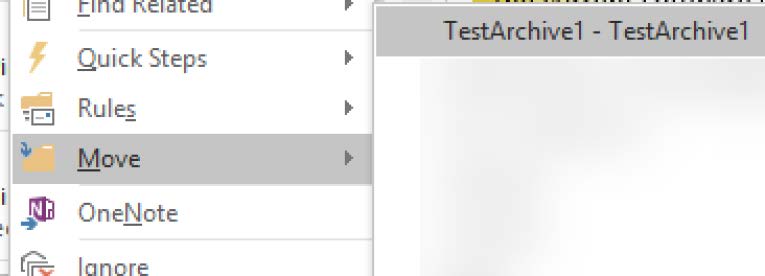
Online Archive
Online Archives will start with 4 GB of storage. Unlike a local archive, users do not have the ability to create an online archive on their own. To request an online archive, contact the Help Desk at 4357.
Navigation
Once an online archive is created, it will appear on the left side of the user’s Outlook screen, underneath their inbox.
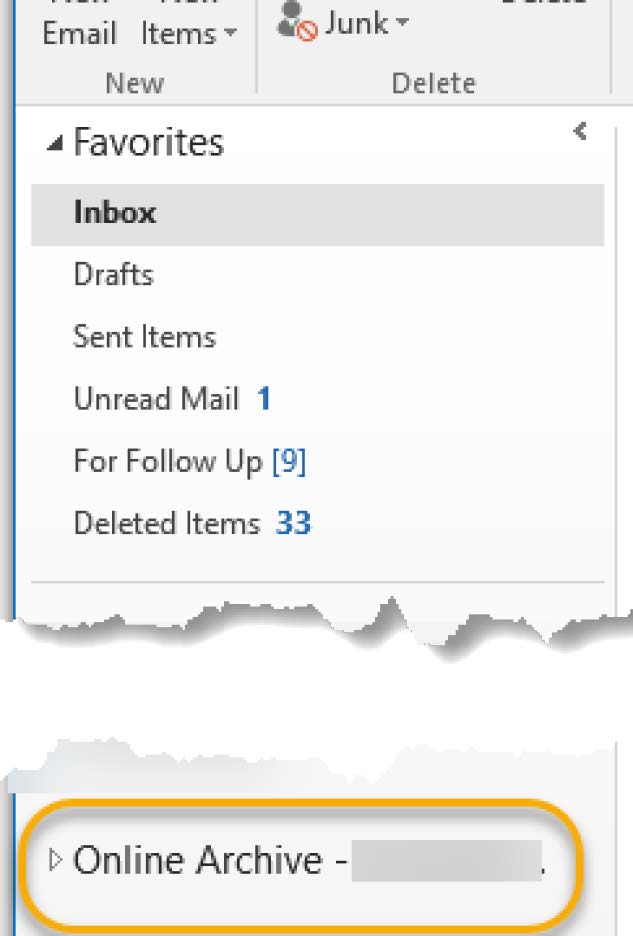
If the Online Archive Folder doesn’t readily appear, try closing Outlook and Skype and restarting the program.
Management
The newly created archive will be empty until the emails are moved into the archive.
- Select the emails to be archived (remember multi-select is possible by holding down the ctrl or shift key).
- Click on the highlighted emails and drag them to the new Archive folder.
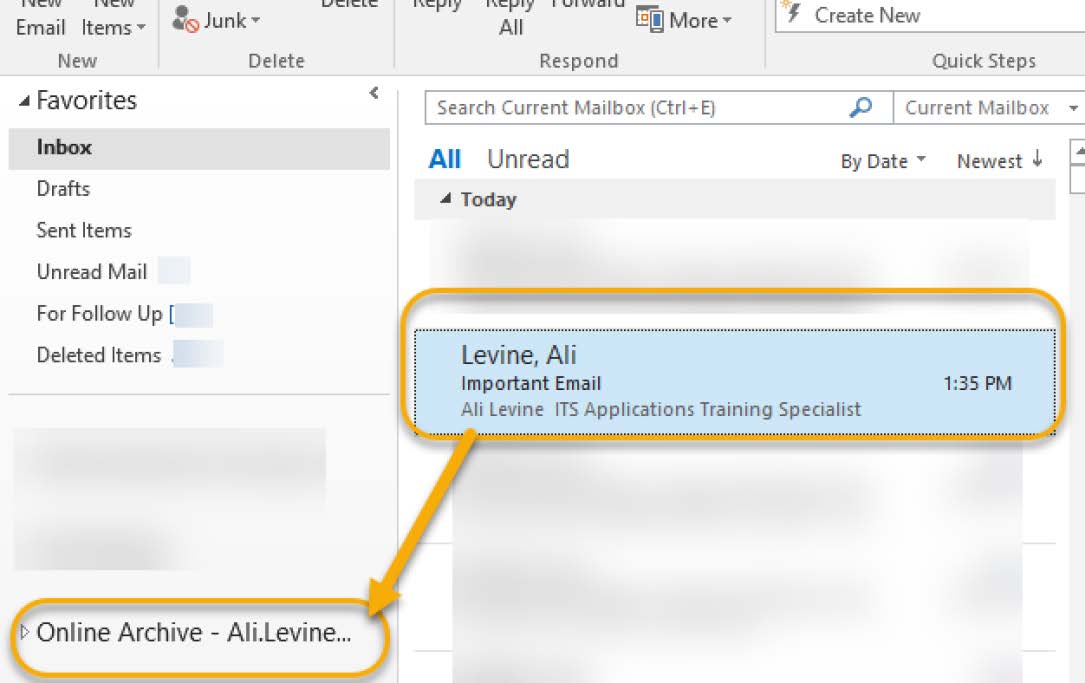
Alternatively: With the emails selected, right click and select Move, then select (Online Archive)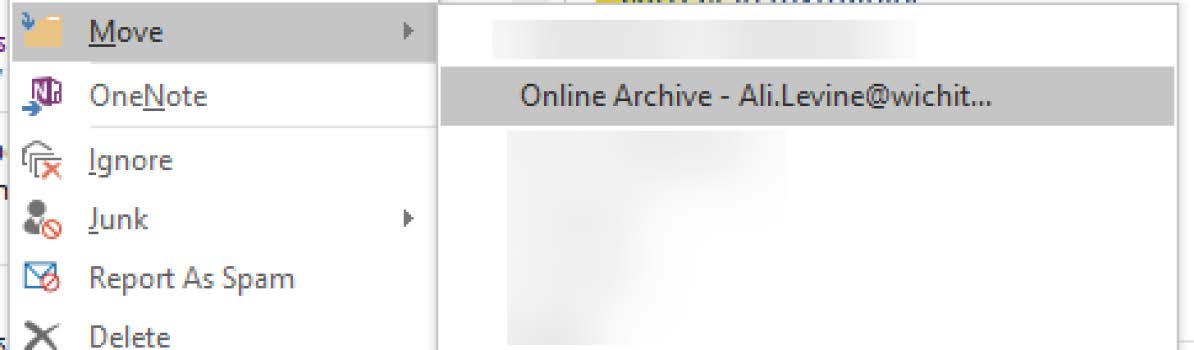
Open an Outlook Data File (PST File)
Creating an archive generates an Outlook Data file (PST File). An archive is one type of PST file you may be opening, but there are other occasions when you might need to open this type of file. To open an Outlook data file (PST File) in Outlook:
- Go to File.
- Select Open and Export from the left menu.
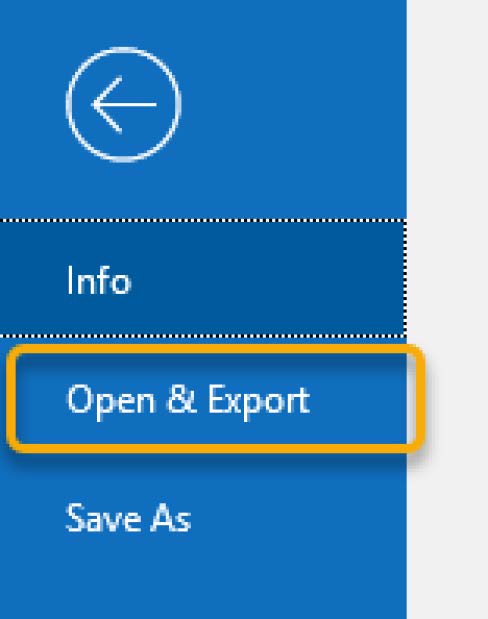
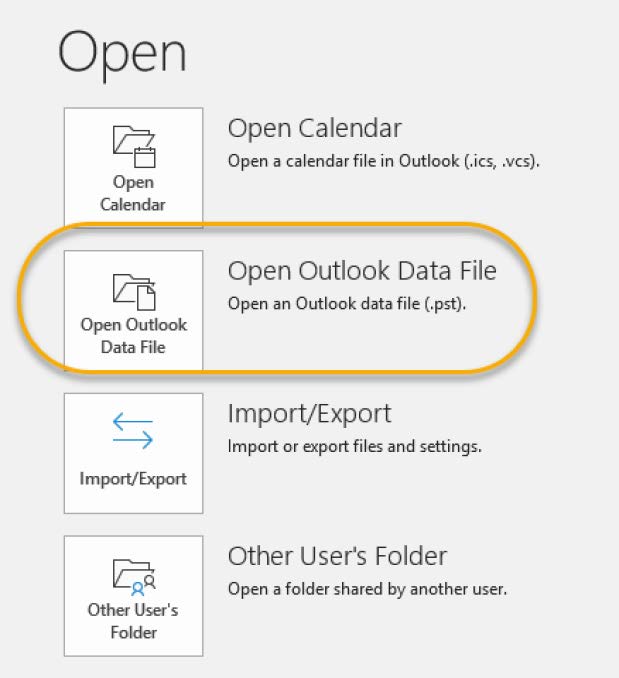
- Select Open Outlook Data File.
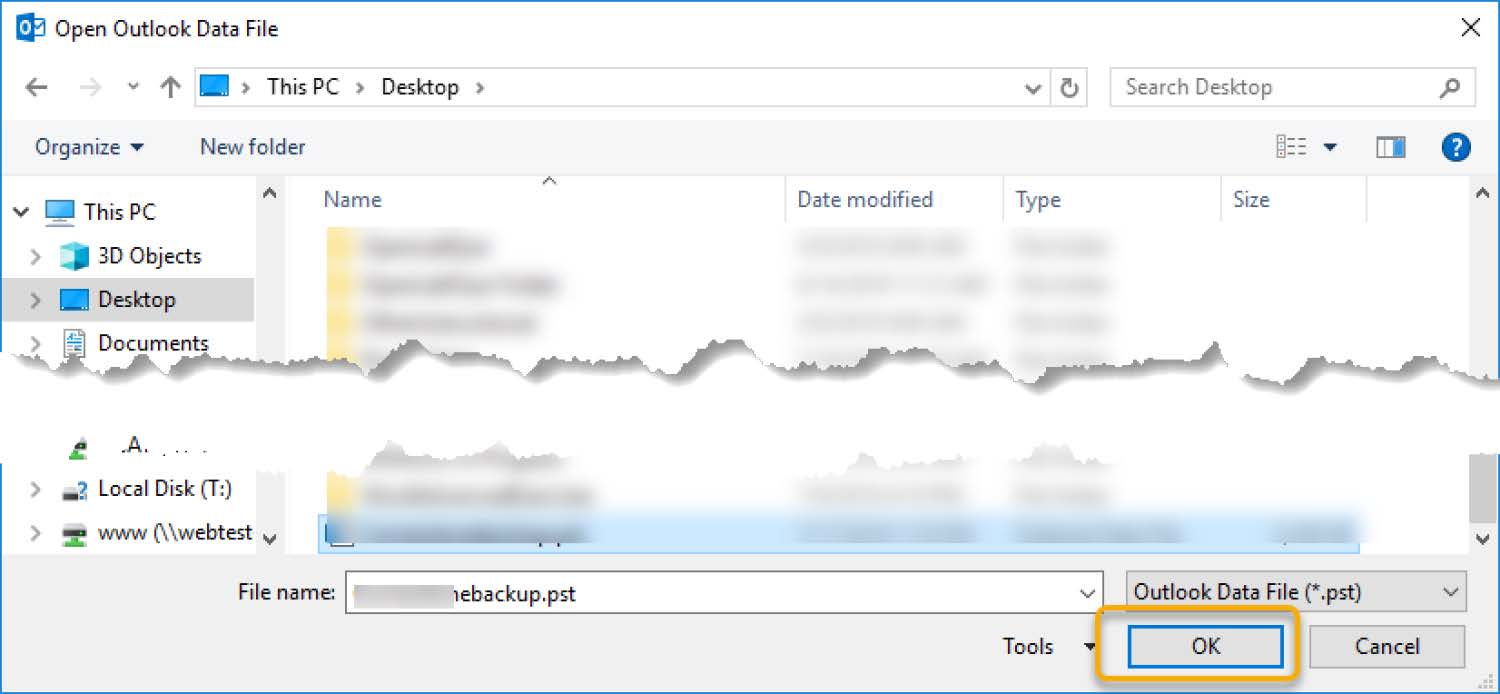
- You will be prompted to browse for the PST file. Select it and press OK.
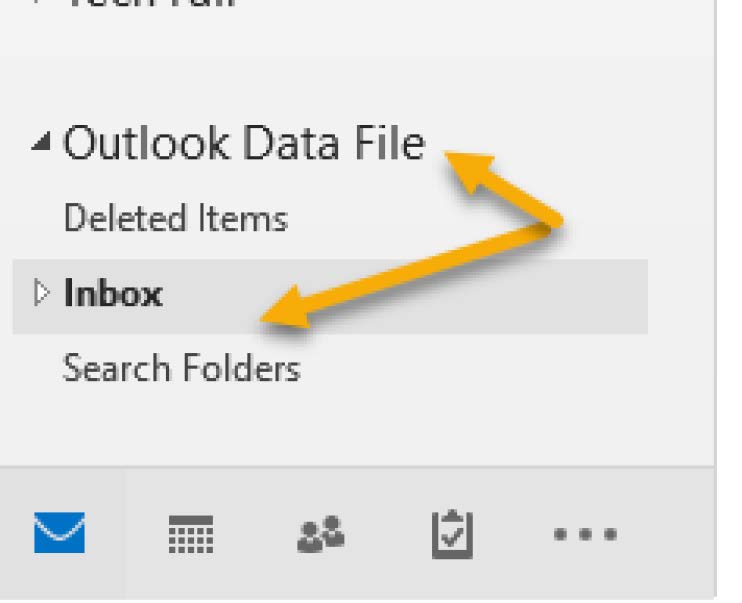
- The Data file will open on the left side of the screen. You may have to press the
arrow next the inbox of the data file to see the files.
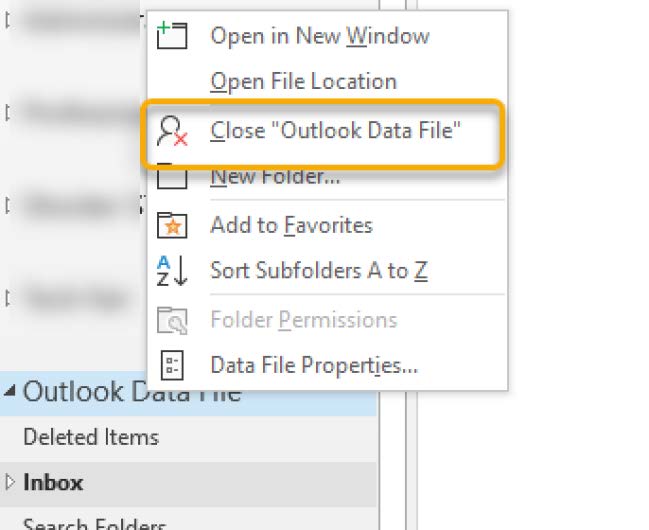
- To close a PST file, find it on the left pane and right click on top of it. Select
Close.
Importing and Intergrating Old Archive Files
Old archive files can be imported and integrated into a user’s new archive.
- Go to File.
- Select Open and Export from the left menu.
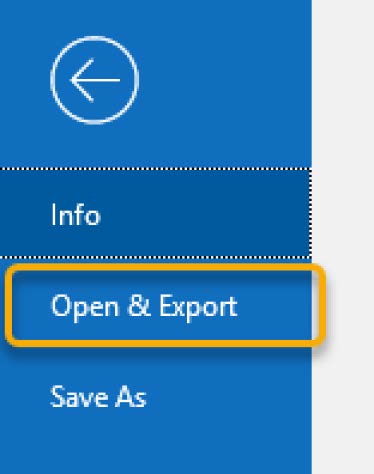
- Select Import/Export.
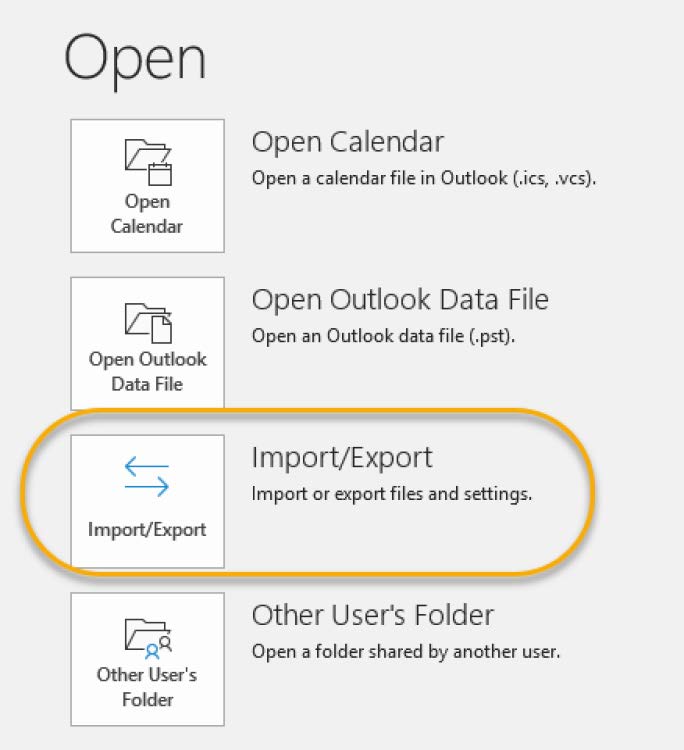
- Select Import from another program or file and press Next.

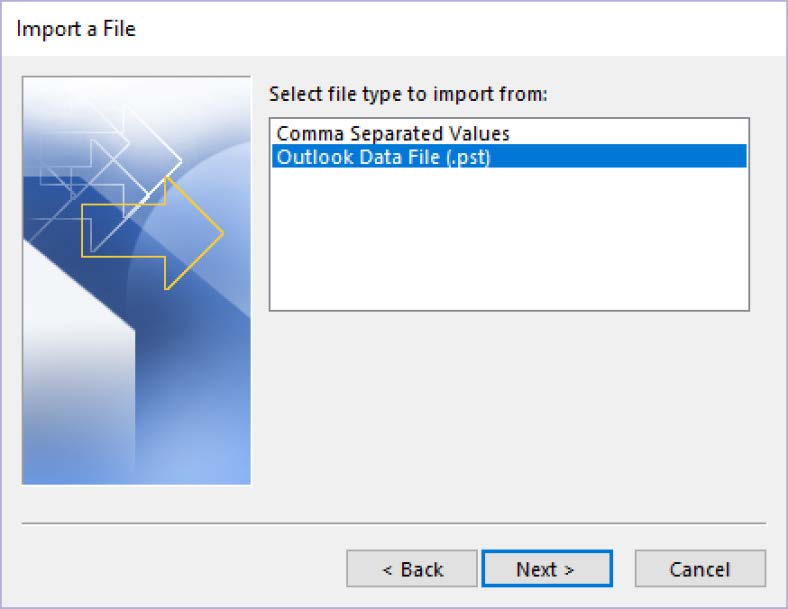
- Select Outlook Data File (.pst) and press Next.
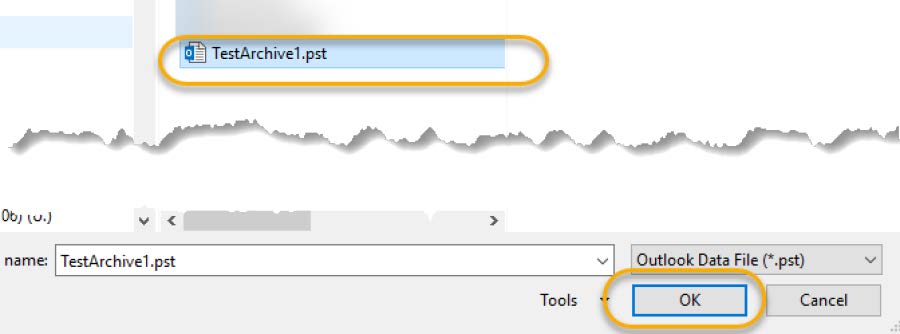
- Press Browse to find the file to be imported. Select the file and press OK.
- Select the radio button next to Import items into the same folder in, and select the desired current archive: this could be an online or local archive.
